Free guide10 stepsAbout 1 hr 46 min readLast verified Oct 2026
Build your portfolio site the way I built this one.
I’m Aditya Gangwani. I built this site with Google Antigravity, Claude, GitHub, and Vercel. This guide walks you through the same workflow, step by step: an AI coding tool, GitHub, and a free host (Vercel or GitHub Pages). You don’t need to know how to code. It is written for any field, from students and career switchers to designers, developers, PMs, and freelancers. View my portfolio
What it costs
- Hosting
- Free on Vercel’s Hobby plan (personal, non-commercial use) or GitHub Pages (public repositories on GitHub Free); usage limits apply. Compare them in step 6.
- AI coding tool
- Some need a paid plan; others have free tiers with usage limits.
- Custom domain
- Optional. Bought from a domain registrar and renewed every year; renewal is often higher than the first-year price.
How the guide works
10 steps, read in order
Each step is one window below. It starts with a short list of what to do and a line that tells you when you are done; the details sit in panels you open only when you need them. Mark each step done as you finish it; this browser remembers your progress.
Move between steps with the numbers above the windows, Previous and Next, a swipe, or the arrow keys.
Keeping the free vercel.app or github.io address? Steps 8 and 9 are optional; you can go from step 7 straight to step 10.
- Steps 1–2Plan · A clear picture of what your site needs, and your content ready to use.
- Steps 3–4Build · A working site on your computer, built with an AI coding tool.
- Steps 5–7Publish · Your code on GitHub and your site live on a free address from the host you pick.
- Steps 8–9Domain (optional) · A clear decision on your address and, if you want one, your own domain connected.
- Step 10Launch · Every page checked and a link ready to share.
Step 01 of 10Plan11 min
Step 1: Picture your site
In this step: See what a portfolio website is for, how it differs from a resume or a LinkedIn profile, and choose the sections that fit your field, experience, and goals.

Aditya
Before you open any AI tool, decide what your site is for and who will read it. Here is my own portfolio on a laptop and a phone, so you can see where this guide ends up.
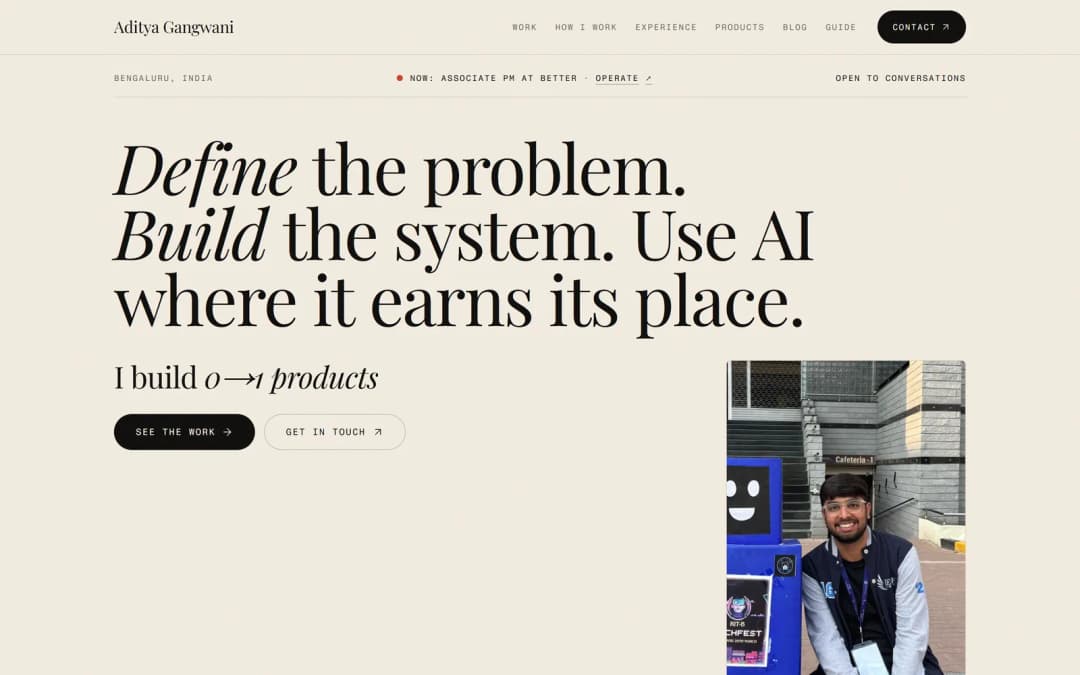
- Navigation links to each section of the site
- A headline that says what you do
- Two clear next steps: see the work or get in touch
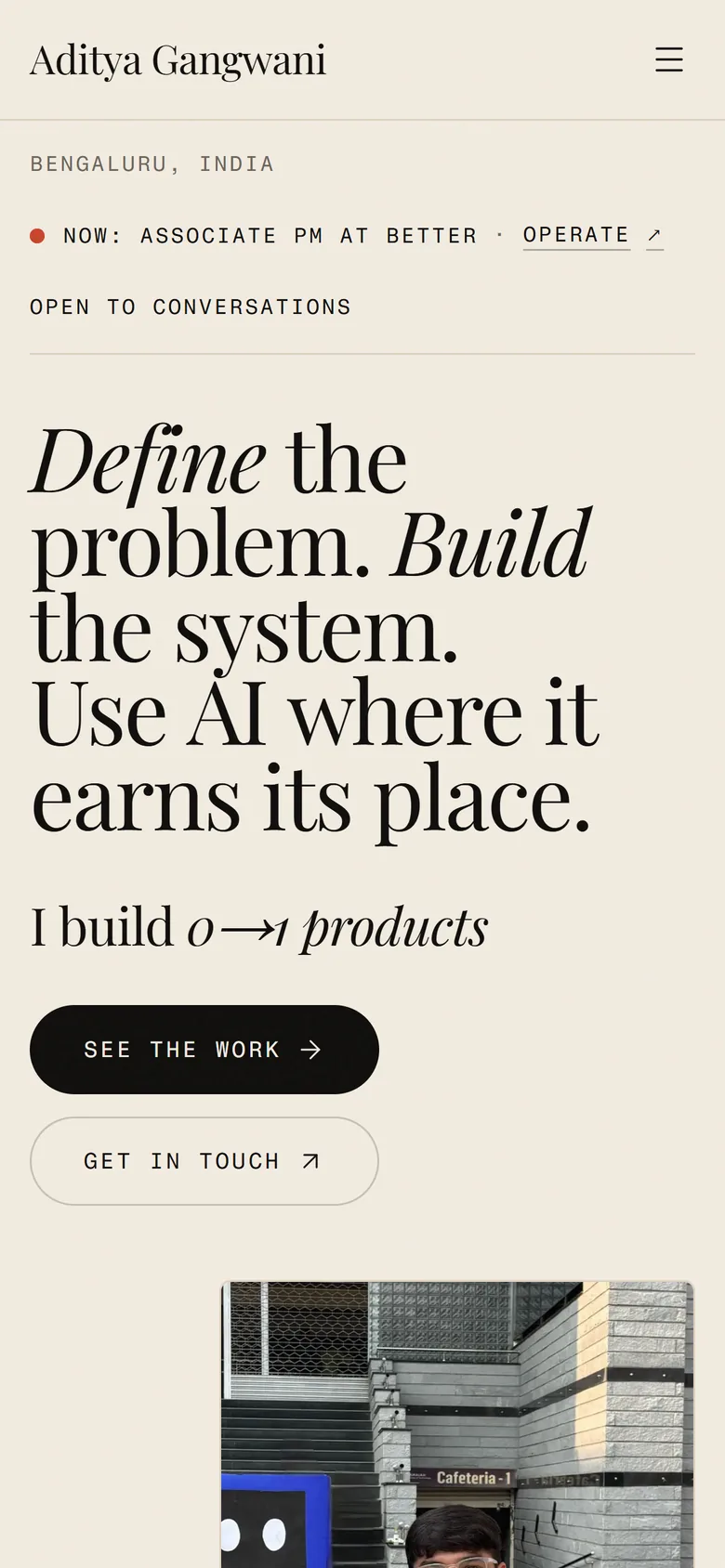
- A menu button replaces the navigation links
- The headline wraps but stays readable
- Buttons stack and stay easy to tap
Do this
- Write one sentence on who the site is for and what you want from it: a job, clients, or something else.
- Look at two or three portfolios in your field and note what each section tells the reader (how to look).
- Pick your sections from the section list. The hero and contact sections are always in.
- Check what to emphasise for your field and your goal, then cut anything thin.
You’re done when you have a short, ordered list of sections to fill in step 2.
Show me how, step by step
Sections a finished portfolio can contain
Here are the sections most portfolios draw from, in any field. You do not need all of them. Each one says when it is worth including, so keep the ones that fit.
- Hero and positioning statement
The first thing visitors see: your name and one or two sentences on what you do, who you do it for, and what you are looking for. Every portfolio needs one.
- About me
A short, human introduction: your path into your field, what you care about, and how you like to work. Include it if your background or motivation helps explain your work, such as a career switch.
- Work and projects
Your strongest work, in the format your field expects: case studies, image galleries, code repositories with live demos, writing samples, or research summaries. A handful of strong pieces is better than everything you have done. Include it once you have at least one piece of work you can show or describe honestly. For most people this is the most important section.
- Experience
Roles, internships, freelance work, or significant responsibilities, with a line or two on what you owned. Include it if you have relevant roles to show; students and career switchers can fold this into projects instead. Freelancers should name clients only if those clients are happy to be named.
- Process and how you work
How you approach a piece of work: how you research, plan, decide, make, and check it. A product manager might share a decision write-up, a designer their design process, and an engineer how they test and review code. Include it if your process is part of what employers or clients are paying for, or if you have limited finished work to point to.
- Skills and tools
Methods and tools you use, such as user research, a programming language, design software, search engine optimisation, or data analysis. Include it if the roles or clients you want ask for specific skills, and keep it to what you can discuss confidently.
- Education and certifications
Degrees, courses, and certifications. Include them if you are early in your career or the credential is relevant to the work you want.
- Writing, talks, and other work
Blog posts, talks, newsletters, open-source contributions, side projects, or community work. Include them if you have pieces you are proud of and that show how you think.
- Testimonials
Short quotes from clients, managers, colleagues, or teachers about working with you. Include them only if the quotes are real and each person has agreed to be quoted, with the name and role they are happy for you to show. Never write or reword a testimonial yourself.
- Contact and social links
An email address or contact form, plus links to the profiles that matter in your field (such as LinkedIn, GitHub, or a design or writing profile) and your resume. Every portfolio needs one, and it should be easy to find from every page.
What to emphasise in your field
The sections above apply to almost everyone, but each field puts the weight in a different place. Use this table as a starting point, not a rule, and check it against the portfolios you admire in your own field.
| If you are | Emphasise | Typical evidence |
|---|---|---|
| Designer | Visual case studies that show your process, not only final screens. | Sketches, iterations, final designs, and what changed after testing or feedback. |
| Developer or engineer | Projects you built, what each one does, and your part in each. | Links to code repositories and live demos, plus notes on technical decisions. |
| Product manager | Decisions, trade-offs, and outcomes. | How you framed the problem and prioritised, what shipped, and what happened next. |
| Marketer | Campaigns, their goals, and honest results. | The brief, channels, creative work, and results you are allowed to share. |
| Writer or content creator | Samples in the formats you want to be hired for. | Links to published pieces, or excerpts you have permission to share. |
| Researcher or analyst | Questions, methods, and findings. | Study design, data sources, key findings, and how they were used. |
| Freelancer | The problems you solve and who you solve them for. | Client work you have permission to show, your services, and how to start working with you. |
| Student or career switcher | Projects, transferable skills, and what you are learning. | Course and personal projects, relevant past experience, and a clear statement of what you want next. |
Choose sections based on your goals
The right set of sections depends on what you want the site to do. A few common starting points:
- Looking for your first role: hero, about, work and projects, education, skills, contact.
- Experienced and changing jobs: hero, experience, two or three strong projects or case studies, skills, contact.
- Switching into a new field: hero, about (explain the switch), projects in the new field, transferable experience, contact.
- Freelancing or looking for clients: hero (what you offer and to whom), selected work, process, testimonials if you have real ones, contact.
Fewer, stronger sections beat a long page of thin ones. You can always add more later, because updating it takes a few minutes once it is set up (step 5 shows how).
Note
Early-career and career switchers: you do not need to invent experience
If you have not worked in the field you want yet, that is normal. Class projects, personal and side projects, volunteering, hackathons, open-source contributions, and student society work all count when you present them honestly. Say what the project was, what you personally did, and what you learned.
Do not label a class project as a job, present a concept as a shipped product or launched campaign, or describe a practice brief as client work. Reviewers can usually tell, and honest framing is more persuasive than an inflated one.
With a rough list of sections in mind, the next step is to gather the actual content and assets that will fill them.
Why it matters / background
Before you open an AI tool, it helps to be clear about what you are making and who it is for. A portfolio website is a small, focused site that shows your work, how you approach it, and how someone can reach you.
This guide works whatever your field: design, engineering, product, marketing, writing, research, or something else. It also works whether you are a student, changing careers, job hunting, or looking for freelance clients. By the end of this step you will have a rough list of sections, which is the starting point for step 2.
Why a portfolio website helps, whatever your field
A job title and a list of employers say little about the quality of your work. Two people with the same title can have done very different things, and a resume rarely has room to show the work itself or explain the thinking behind it. A portfolio gives you that room.
- It shows the work itself. A designer can show screens and the sketches behind them, a developer can link to working projects and their code, and a writer can share published pieces. Reviewers can judge the work directly instead of taking a bullet point on trust.
- It shows how you think. A short write-up can walk a reader through a problem, the options you weighed, and why you chose one. That is what interviewers and clients try to uncover anyway.
- It gives people one link. Recruiters, hiring managers, and potential clients can see your background, work, resume, and contact details in one place instead of piecing them together from several sites.
- It demonstrates care. Choosing what to include, writing it clearly, and publishing it is itself a small project. A tidy, well-structured site signals that you pay attention to details.
A portfolio will not replace your resume or your network, and it does not guarantee interviews or clients. It is a supporting asset: something you can share with confidence when someone asks what you have done.
What a portfolio should communicate
Whatever your field and whatever sections you choose, a reader should come away with clear answers to four questions:
- What have you worked on? Show the work itself, whether that is designs, code, products, campaigns, writing, or research. Choose pieces that represent the work you want to do next.
- How do you approach the work? Describe your process: how you understood the problem, the trade-offs you made, the evidence you used, and what you decided not to do. This is what sets you apart from someone with similar output.
- What happened, and how do you know? Share real outcomes and the evidence behind them, such as a live link, a published piece, feedback someone agreed to let you quote, or results you are allowed to share. Include what did not go to plan. Honest reflection is more convincing than a perfect record.
- Who are you, and how can people reach you? Say what you do, what you are looking for, and how you work with other people, and make it easy to get in touch.
Learn from real portfolios without copying them
This guide is based on the workflow behind adityagangwani.me, the site you are reading it on. It is a product manager’s portfolio, so its sections reflect that field. It is fine to look at it, or any portfolio you admire, to understand how it is structured. Notice the order of the sections, what question each one answers, and how much text sits on each page.
Then look at strong portfolios from people in your own field, ideally people a few steps ahead of where you are now. Each field has its own conventions: design portfolios lean on visuals, developer portfolios on working projects and code, and writing portfolios on published samples. Seeing several examples helps you tell a convention apart from one person’s style.
Do not copy the wording, the visual design, or any claims. Your portfolio only works if it describes your own experience in your own voice. A useful exercise is to write down, for each section of a site you like, one sentence on what it is trying to tell the reader. Then ask whether you need that section at all.
Portfolio, resume, LinkedIn profile, or case study?
These four formats overlap, so it is easy to end up with a website that simply repeats your resume. The table shows what each one is best at.
| Format | What it is | Best for | Who controls it |
|---|---|---|---|
| Portfolio website | Your own site with your positioning, selected work, and contact details. One long page or a few short ones. | Showing your work and how you approach it, and giving people a single link to share. | You control the structure, design, and content. |
| Resume | A concise document listing roles, education, and achievements. Usually one or two pages, often a PDF. | Job applications and applicant tracking systems. | You control the content; employers often expect a conventional layout. |
| LinkedIn profile | A profile on a professional social network, with fixed sections defined by the platform. | Being found by recruiters, networking, and showing endorsements and activity. | You control what you write; the platform controls the format and features. |
| Case study or project write-up | A detailed story of one piece of work: the brief or problem, your role, your process, key decisions, and the outcome. Usually one page per project. | Proving depth on a specific piece of work. | You control it. It usually lives inside your portfolio. |
In practice, your portfolio links to the other three: it hosts your case studies or project write-ups, offers your resume as a download, and links to your LinkedIn profile.
Step 02 of 10Plan11 min
Step 2: Gather your content
In this step: Gather a short description of what you do, your best work, links, and images before you open an AI tool. A discovery prompt then turns them into a sitemap and content outline without invented claims.
Aditya
Gather your real content before you touch an AI tool. The site can only be as good as the material you give it, which is why I put this step before the build. Then let a chat AI interview you and shape that material into a brief.
Already have your content? Skip to step 3
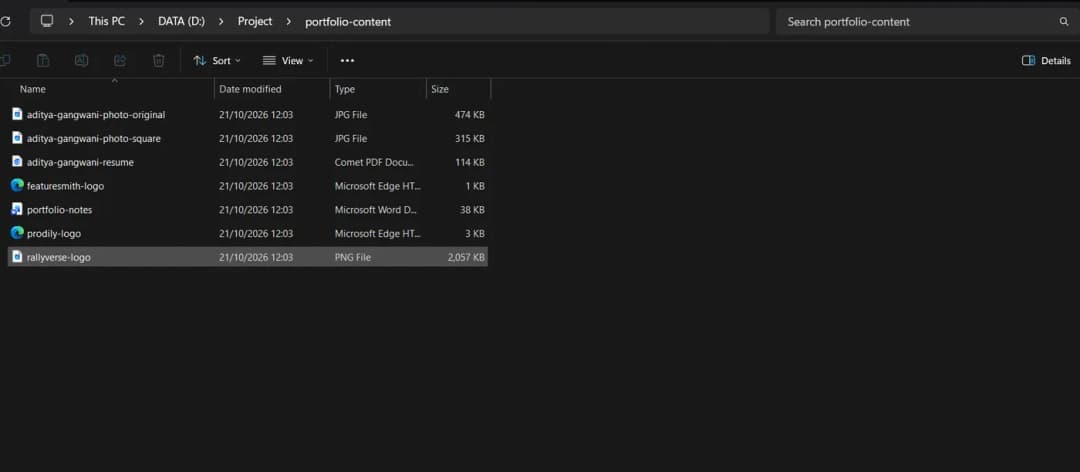
- One folder for everything your site will show
- Photos with clear, descriptive file names
- Your resume, logos, and notes in the same place
Do this
- Make a folder called
portfolio-contentwith one document for your notes. - Write rough notes on your headline, introduction, experience, and two to four projects (what to collect).
- Add your resume PDF, a photo, and the work samples you may publish (file checklist).
- Paste the discovery prompt below into any chat AI and answer its questions from your notes.
- Check every fact in the plan it returns, then save it as
portfolio-brief.mdin the folder.
Prompt
Portfolio discovery
Have an AI interview you about your field and work, then turn your answers into a positioning statement, sitemap, content outline, asset checklist, and design direction.
You are a portfolio strategist helping me plan a personal portfolio website. Your job right now is discovery: interview me, then turn my answers into a clear plan. Do not write any website code yet.

HOW TO INTERVIEW ME
1. First ask my field or role (for example designer, developer, product manager, marketer, writer, researcher, student, or career switcher) and what I want the site to help me get: a job, clients, or something else. Adapt every later question to my answers.
2. Ask your questions in small batches of 3 to 5, and wait for my answers before moving on.
3. Cover these topics, in roughly this order:
   - My background: education, roles, and how I got into my field
   - My goals and audience: who will read the site, such as recruiters, hiring managers, clients, or collaborators
   - My work: for each project, the context, the problem or brief, my role, my process, key decisions, what I delivered, the outcome and evidence, and what I learned
   - My strengths and skills, and the tools I use
   - My links and assets: resume, profiles, photo, and work samples
   - My preferred visual style, including 2 or 3 websites I like and why
4. Ask the questions my field needs. For example: for design work, which visuals I can show; for software, my code repositories and live demos; for writing, my published samples; for marketing, the campaign goals and results I may share; for research, my methods and findings.
5. If an answer is vague, ask a short follow-up question instead of guessing.

RULES
1. Do not invent experience, achievements, metrics, employers, clients, job titles, dates, testimonials, or outcomes. Use only what I tell you.
2. If something is missing, ask me. If I cannot answer, write "[needs input]" in that place.
3. If I give a number, keep it exactly as I gave it. If I describe a result without a number, keep it qualitative.
4. Flag anything that may be confidential or covered by a non-disclosure agreement (client or internal names, unreleased work, private code, revenue, personal data) so I can check permission or anonymise it.
5. Do not generate website code or a full site design until discovery is finished and I confirm the plan.

WHEN DISCOVERY IS DONE, give me:
1. Positioning statement: 2 or 3 options of one or two sentences each.
2. Proposed sitemap: the sections or pages, in order, with one line on what each one is for.
3. Content outline per section, using only facts I provided.
4. Asset checklist: what I already have and what is still missing, including the visuals, code links, or samples my field needs.
5. Design direction: tone, typography, colour, and layout, with reference sites.

Format everything as one Markdown document named portfolio-brief.md. If you can create files in my project folder, save it there; otherwise give me the full document to save myself.

Start by briefly explaining how this will work, then ask about my field and goals.
You’re done when portfolio-brief.md is in your portfolio-content folder, every fact in it is checked, and every “[needs input]” gap is filled or removed.
Show me how, step by step
What to collect
Create a folder on your computer called something like portfolio-content and a single text document inside it for your notes. Work through the list below. Rough notes are fine; you will refine them with the discovery prompt later in this step.
Your name and headline
Write your name as you want it shown, and a one-line headline, for example “Product designer focused on health apps”, “Backend engineer who enjoys developer tools”, or “Marketing graduate looking for a first agency role”. Draft two or three versions; you can choose later.
A short introduction
Three to five sentences about who you are, what kind of work interests you, and what you are looking for next. Write it the way you would introduce yourself at a meetup.
Education and experience
List degrees, courses, roles, internships, and freelance work with dates. For each role, note one to three things you owned or changed. Your resume is a good starting point, but add the context it leaves out.
Projects
For each piece of work you want to show, note:
- the problem or brief, and who it was for
- your role, what you personally did, and who you worked with
- your process: research, exploration, drafts, prototypes, testing, or iterations
- the key decisions and trade-offs
- the outcome, the evidence for it, and what you learned
Two to four well-explained projects is a good target. Fields that rely on volume, such as design or writing, may show a few more in less depth.
Visuals and work samples
Gather what lets people see the work: screenshots or images you are allowed to share, exported design files or prototypes, links to code repositories and live demos, writing samples or published pieces, and slides or reports. Note where each one came from and whether you have permission to publish it.
Skills and tools
Methods you use (such as user interviews, usability testing, data analysis, or editing) and tools you know (such as design software, programming languages, analytics, or writing tools). Keep it to things you could talk about in an interview or with a client.
Links
Collect the exact URLs for your LinkedIn profile, GitHub or other work profiles, published writing or talks, and anything else you want to show. Open each one to check it works and is up to date.
Profile photo
A clear, recent photo of you, or another image you are happy to use to represent yourself.
Prepare your files
- Export your resume as a PDF with a clear filename, such as
firstname-lastname-resume.pdf, so it looks tidy when someone downloads it. Remove your home address and anything else you would not want published on the open web. - For your profile photo, use a square, high-resolution image with good light and a plain background. A square image is easiest to crop into a circle or card.
- Only use images and screenshots you own or have permission to use. Work from a past employer or client may be confidential; check before publishing, or create a simple diagram instead. Keep the original, full-size files; your coding tool can make smaller copies for the web.
- Check that every code repository you plan to link to is meant to be public, has a short description of what it is, and contains no passwords or keys. Open each live demo to make sure it still loads.
- Link to the published version of each writing sample where you can. If a piece is no longer online, keep a PDF copy, and only publish it if you have the right to.
Put all of these files in your portfolio-content folder so they are easy to find later.
Turn your notes into a plan with a discovery prompt
Your notes are now the raw material. The next step is to shape them into a plan: what you will say, in what order, and how the site should feel. An AI chat assistant can help by interviewing you, the way a good career coach would.
Copy the discovery prompt at the top of this step into a new chat. The AI will first ask about your field and goals, then adapt its questions to them, asking a few at a time. Answer them using your notes, and paste in sections of your notes when that is quicker. The prompt tells the AI not to invent anything and not to write code yet, so the result is a plan built only from your real information.
When the AI delivers its plan, read it carefully before you accept it.
- Check every fact. Correct anything that is wrong or that the AI added on its own.
- Fill in each “[needs input]” gap, or remove that part of the outline.
- Pick one positioning statement, or combine the options into one you like.
Then save the final version as a document called portfolio-brief.md in your portfolio-content folder. The .md ending means Markdown, a plain text format that uses simple symbols such as # for headings. Any text editor can open it. In step 4 you copy this file into your project folder, and your AI coding tool reads it from there.
Tip
You do not need a coding tool yet
This prompt works in any chat AI, including the free plan of Claude (opens in a new tab). Discovery is just a conversation, so you can do it before you install anything.
A faster way: let one AI ask and another help you answer
If you already have a coding agent such as Google Antigravity, you can run discovery inside it. This is the workflow behind this site:
Ask the questions in your coding agent
Open your project folder in the agent and paste the discovery prompt. It asks its questions a few at a time.
Draft answers with a chat assistant that knows you
Copy each batch of questions into a chat assistant you have used a lot, such as ChatGPT or Claude. If it remembers your background from earlier chats, it can draft detailed answers in seconds.
Check every answer, then paste it back
Read each draft before you paste it into the agent. Fix anything wrong, vague, or exaggerated: chat assistants can misremember details or make results sound bigger than they were, and your portfolio has to be accurate.
Let the agent save your brief
When discovery is done, the agent can save
portfolio-brief.mdstraight into the project folder, ready for the master prompt in step 4.
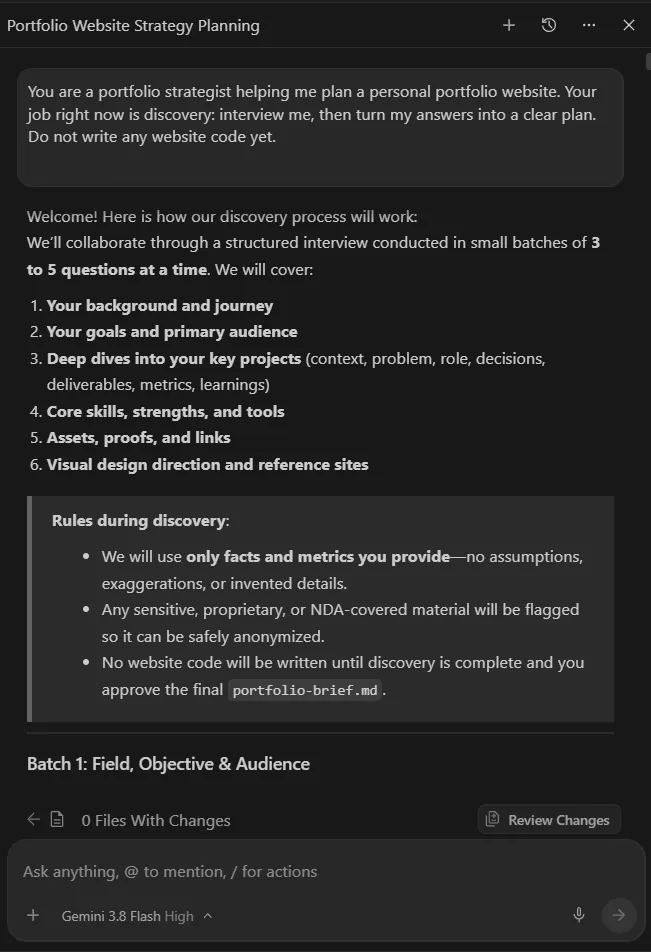
- The discovery prompt, pasted in
- The topics the interview will cover
- The first small batch of questions
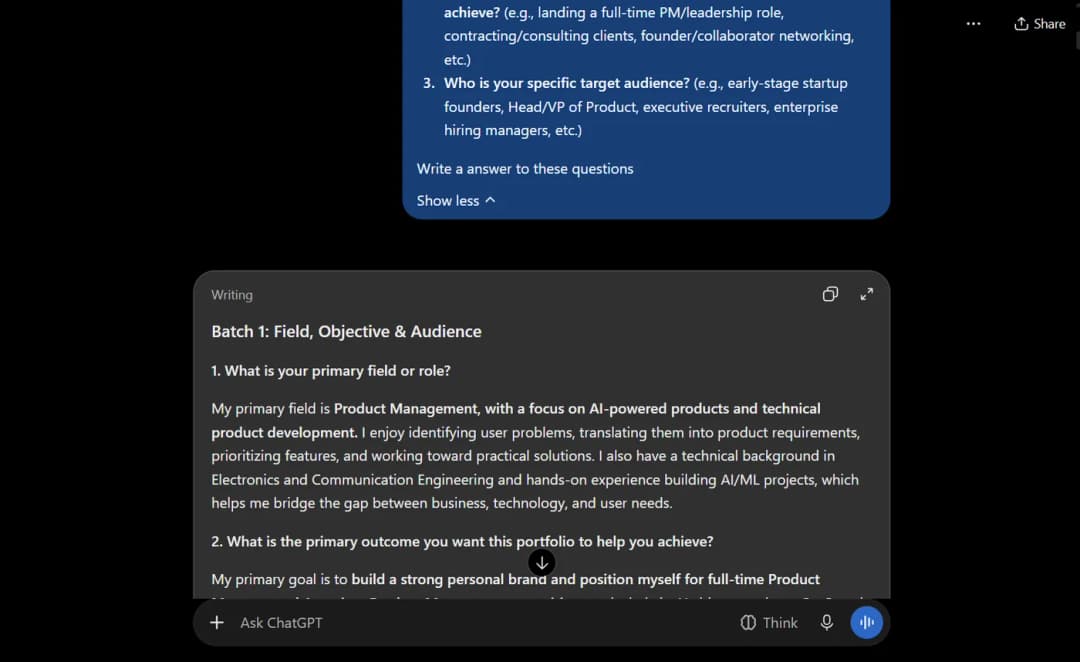
- The questions pasted in, with a request for help answering
- Draft answers to check and correct before you use them
Why it matters / background
AI tools are good at turning material into a website. They are not good at knowing your work. If you start with a vague request, you get a generic site full of guesses. If you start with real content, you get a site that sounds like you.
This step is about collecting that content before you build anything. Plan for an hour or two, spread over a couple of sittings. Of everything in this guide, it is the step I would least want you to skip.
How to write credible case studies
A case study is a short story about one piece of work that shows how you approached it. The term is most common in design and product work, but the same structure works for a software project, a campaign, a series of articles, or a research study. You do not need a fancy format:
- Context: the project, who it was for, and the situation, in two or three sentences.
- Problem or brief: what was wrong, missing, or asked for, and for whom.
- Your role: what you were responsible for, and who you worked with.
- Process: how you approached it, such as research, sketches, drafts, prototypes, or experiments.
- Decisions: the options you considered, what you chose, and why.
- What you delivered: what was actually built, designed, published, or launched.
- Outcome and evidence: what happened as a result, and how you know.
- What you learned: what you would keep or do differently.
Use real outcomes. If you have numbers you are allowed to share, use them exactly. If you can only share an approximate figure, say that it is approximate and where it comes from (for example, “roughly a third fewer support tickets in the quarter after launch, based on the support team’s weekly reports”). If you have no number, use a qualitative result (“the client now uses the new logo across all its signage”). Evidence can also be a live link, a published piece, or a quote someone has agreed to let you use.
Watch out
Never invent results or share confidential work
Made-up numbers, clients, or quotes are easy to spot in an interview or client conversation, where you may be asked how you measured or got them. Only include results you can explain.
For work done for an employer or a client, assume it is confidential unless you know otherwise. Many contracts include a non-disclosure agreement (NDA), a legal promise not to share certain information. Ask before publishing unreleased designs, internal documents, private code, or figures. If you cannot get permission, anonymise (“a fintech client” instead of the company name), recreate visuals without the sensitive details, aggregate figures, or describe the problem and your reasoning without showing the work itself.
Step 03 of 10Build5 min
Step 3: Pick your AI tool
In this step: Compare coding agents such as Google Antigravity and Claude Code with chat-only assistants.
Aditya
You do not need to code to build a portfolio, but you do need a tool that can. I built this site mainly with Google Antigravity, with occasional help from Claude.
Do this
- Decide between a coding agent and a chat window (the difference). For building the site, use an agent.
- Check its current plans and limits on the official page before you sign up.
- Install it with its getting started guide and open it once to check it works.
You’re done when your coding agent is installed and opens, ready for the master prompt in step 4.
Show me how, step by step
Tools you can use
Plans and features change often, so treat the details below as a summary at the time of writing and check each tool’s official page before you sign up. Some tools offer a free tier with usage limits; others need a paid plan.
Google Antigravity
Google Antigravity (opens in a new tab) describes itself as an agentic development platform. It is available as an app, a command-line tool, and an IDE (a code editor), on macOS, Windows, and Linux. The Antigravity IDE (opens in a new tab) can work across the editor, the terminal, and a browser, which suits a build-and-preview workflow.
At the time of writing, the pricing page (opens in a new tab) lists a plan for individuals at no charge with basic weekly rate limits, meaning you can only use it so much each week. Google AI Pro and Ultra plans raise those limits. See the plans documentation (opens in a new tab) for current details, and the getting started guide (opens in a new tab) to install it.
Claude Code
Claude Code (opens in a new tab) is Anthropic’s AI coding assistant. You can use it in a terminal, through extensions for editors such as VS Code and JetBrains IDEs, in a desktop app, or on the web.
It requires a paid Claude plan (Pro, Max, Team, or Enterprise) or a Console account, which is Anthropic’s API platform. The free claude.ai plan does not include Claude Code, though you can still use free Claude chat for planning. Follow the setup guide (opens in a new tab) to install it and the quickstart (opens in a new tab) for your first session.
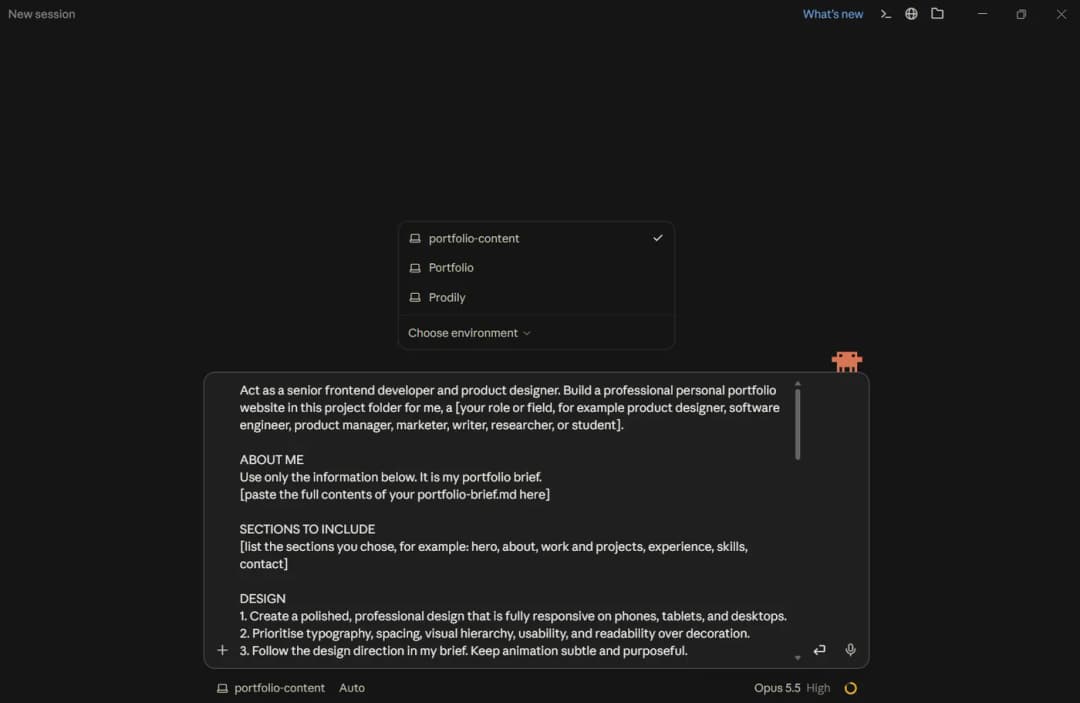
- Choose the project folder the session works in
- Paste your prompt into the message box, then send it
Other tools
Many other tools can build a portfolio, including Cursor (opens in a new tab), GitHub Copilot (opens in a new tab), Replit (opens in a new tab), Bolt (opens in a new tab), Lovable (opens in a new tab), and v0 by Vercel (opens in a new tab). They differ in how they work and what they cost, so check each tool’s current plans and limits.
Note
Browser-based builders work a little differently
Tools such as Replit, Bolt, Lovable, and v0 run in your browser and may host the site for you, with their own publishing or export options. That can be convenient. This guide assumes you end up with your site’s code in a folder you can put on GitHub, so if you use one of these tools, look for its option to export the code or connect it to GitHub before you continue to step 5.
Why it matters / background
You now have a portfolio brief. You do not need to know how to code to turn it into a website, but you do need to give clear instructions, review what the tool produces, and ask for specific changes.
The build workflow in step 4 works with Google Antigravity, Claude Code, or another tool you prefer. No single tool is required.
What AI coding tools do
An AI coding tool is an assistant that writes and edits code from instructions in plain English. You describe what you want, the tool writes the files, and you review the result. For a portfolio, that means the pages, the styling, and the small bits of behaviour such as a mobile menu or an image gallery.
The tool is fast, but it is not the author of your portfolio. It cannot know your work, and it can make mistakes. Your job is to supply accurate content, judge the result, and steer it.
Coding agent or chat interface?
AI tools come in two broad shapes. A coding agent works directly in a folder on your computer (or in a project the tool hosts for you): it creates and edits files, runs commands, and can often start a preview. A chat interface only replies with text, so you copy code into files yourself.
| Aspect | Coding agent | Chat interface |
|---|---|---|
| Where it works | Inside your project folder, with access to its files. | In a chat window, separate from your files. |
| How code reaches your project | The agent creates and edits files for you. | You copy each file from the chat and save it yourself. |
| Previewing the site | Can usually run commands to start a local preview. | You set up and run the preview yourself. |
| Best for | Building and changing a multi-file website. | Planning, writing content, and asking questions. |
| Watch out for | Review changes before you accept them; it can edit many files at once. | Easy to lose track of which file is the latest version. |
For building the site, use a coding agent. A chat interface is still useful for planning, which is why the discovery prompt in step 2 works in any chat AI.
Step 04 of 10Build16 min
Step 4: Build it, then refine it
In this step: Build your site with a master prompt and specific, step-by-step feedback.
Aditya
My advice for this step: treat it as a review job. The agent writes the code and you judge it. Send it the master prompt, approve its plan, then improve the draft one specific change at a time.
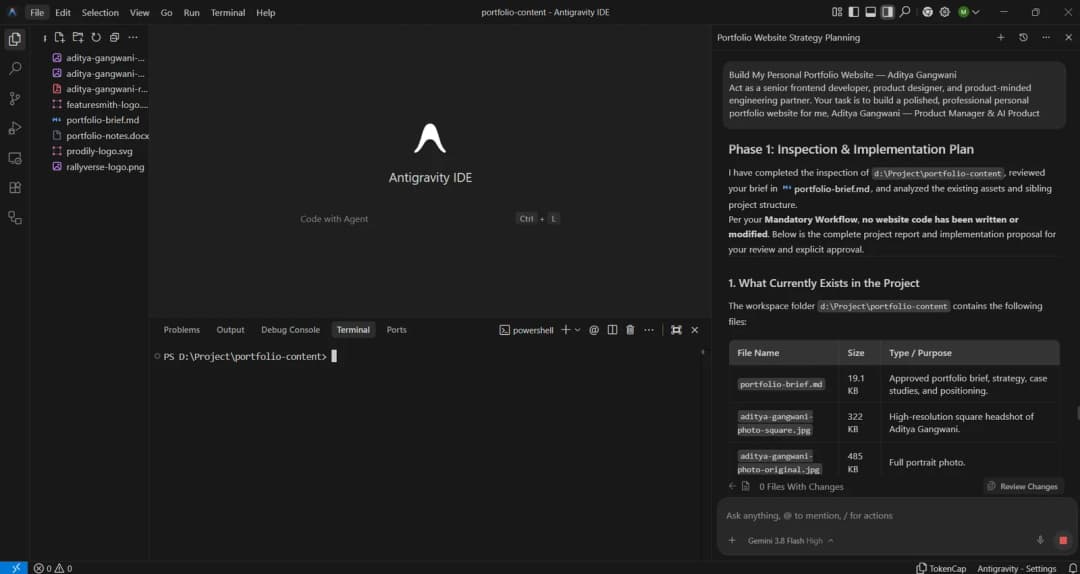
- portfolio-brief.md in the project folder
- The master prompt, pasted into the agent
- The agent’s plan, for you to approve before it codes
Do this
- Create an empty project folder such as
my-portfolio, open it in your tool, and copyportfolio-brief.mdinto it. - Replace the square-bracket parts of the master prompt below, then send it.
- Read the plan the agent sends back. Ask about anything unclear, then approve it.
- Open the local preview, click every link, and check it at phone width.
- Send one or two specific fixes at a time until the final quality check passes.
Prompt
Build my portfolio website
Give a coding agent your real content, design priorities, and rules so the first version is accurate, accessible, and ready to deploy.
Replace the [marked] parts with your own details.
Act as a senior frontend developer and product designer. Build a professional personal portfolio website in this project folder for me, a [your role or field, for example product designer, software engineer, product manager, marketer, writer, researcher, or student].

ABOUT ME
1. Read portfolio-brief.md in this project folder before you plan anything. It is my portfolio brief and your only source of facts about me.
2. If the file is missing, or a part of it is unclear or marked "[needs input]", stop and ask me instead of guessing.

SECTIONS TO INCLUDE
Use the sections from the sitemap in my brief, in that order. [Optional: list any changes, or delete this line]

DESIGN
1. Create a polished, professional design that is fully responsive on phones, tablets, and desktops.
2. Prioritise typography, spacing, visual hierarchy, usability, and readability over decoration.
3. Follow the design direction in my brief. Keep animation subtle and purposeful.

FIELD NOTES
[keep the line that fits you, or write your own, and delete the rest]
- Designer: give each project an image-led case study page, with optimised images, descriptive alt text, and room for process visuals.
- Developer: link each project to its code repository and live demo, and name the main technologies used.
- Writer: list samples with title, publication, and date, each linking to the published piece.
- Product manager, marketer, or researcher: give each case study clear parts for the problem, the decisions or methods, and the outcome.
- Student or career switcher: lead with projects and skills, and keep course or personal projects clearly labelled as such.

CONTENT RULES
1. Use my real information only. No fake statistics, invented projects, clients, employers, testimonials, or outcomes.
2. Use my real links: [your email], [your LinkedIn or other profile URLs], [your resume file or URL], [links to your work, such as repositories, live demos, or published pieces].
3. The finished site must not contain placeholder links or placeholder text. If something is missing, list it and ask me.
4. Every link, button, and interaction must work.

TECHNICAL RULES
1. Build the whole site with Next.js (App Router) and TypeScript in strict mode. Write every code file in TypeScript (.ts or .tsx). Do not use plain JavaScript files, another framework, or another language.
2. If this folder already contains a project that is not Next.js with TypeScript, stop and ask me before you change anything.
3. The site must be deployable from a GitHub repository to [Vercel or GitHub Pages]. If GitHub Pages, use Next.js static export (output: 'export') with no server code, and set basePath if it will live at /repository-name.
4. Do not add unnecessary dependencies or heavy animation libraries. Put every package the site needs in package.json, so it also builds on a fresh computer.
5. Build for accessibility: semantic HTML, alt text for images, keyboard navigation, visible focus states, and good colour contrast.
6. Add a page title and meta description.
7. Add a .gitignore that excludes dependency folders, build output, environment files, and portfolio-brief.md, so my brief is not published.
8. Never put passwords, API keys, or other secrets in the code.
9. Before you finish, run the production build (npm run build) and fix every error it reports.

PROCESS
1. Before writing code, summarise your plan (stack, file structure, sections) and wait for me to confirm.
2. Ask me before any big decision, such as adding a dependency, changing the stack, or removing content.
3. When you finish, explain in beginner-friendly steps how to run and preview the site on my computer.
4. List every file you created or changed, with one line on what each one does.
You’re done when the content is accurate, the layout works on phones and desktops, and the final quality check passes.
Show me how, step by step
The build loop
Whichever tool you choose, the work follows the same loop. Expect to go around steps 4 to 6 of this loop many times.
Create or open a project folder
Create a new, empty folder for the website, such as
my-portfolio, and open it in your tool. Each tool’s getting-started guide shows how. Keep this separate from yourportfolio-contentnotes folder, because everything in the project folder may end up on GitHub.Provide your content and requirements
Copy
portfolio-brief.mdinto the project folder (skip this if your agent already saved it there during discovery), then paste the master prompt from the top of this step. The prompt tells the agent to read the brief from that file, so you never paste the brief itself. If you want the agent to use your photo, resume, or project images, copy those files into the project folder too. Only copy files you are allowed to publish, because anything in the project folder can end up on GitHub and on your live site. Leave your notes and anything private inportfolio-content.Ask the tool to build
The prompt asks the agent to share its plan first. Read it, ask questions if anything is unclear, then confirm. Many agents ask for approval before running commands or editing files; read each request before you approve it.
Review the preview
Ask the agent to start a local preview, often called a development server: a version of the site that runs only on your computer at an address such as
http://localhost:3000. Open it in your browser, read every section, and click every link. Then make the browser window narrow, or use your browser’s device mode in its developer tools, to check how it looks at phone width.Give specific feedback
Write down what is wrong, where, and what you expect instead. Send one or two issues at a time. The next section shows what specific feedback looks like.
Fix and test again
After each change, reload the preview and check the part you asked about, plus anything nearby that might have been affected. Repeat until you are happy, then move on to publishing.
Tip
Keep the guide and your AI tool side by side
Keep this guide open in one browser tab and your AI tool in another tab or window. As you read, the address bar keeps the step you are on, so when you switch back you return to exactly where you were. Each step also has a Copy link button at the top if you want to save your place somewhere else.
The master prompt
The master prompt at the top of this step gives the agent everything it needs for a strong first version. Replace each part in square brackets with your own information before you send it. It works for any field.
The agent reads your brief from portfolio-brief.md in the project folder, so keep that file up to date: when your details change, edit the file and ask the agent to read it again. The prompt also keeps the brief out of your public repository.
The prompt asks for Next.js with TypeScript, a popular framework for building websites and a version of JavaScript that catches many mistakes before they reach your site. Sticking to one stack keeps the agent from picking something different each time, and the publishing steps cover it on both hosts: Vercel, or GitHub Pages as a static export.
The field notes part tells the agent how your field usually presents work, such as image-led case studies for designers or repository and demo links for developers. Keep the line that matches you, adapt it, or write your own, and delete the rest.
One of its rules keeps secrets out of your code, such as an API key (a password-like code that lets a program use a paid or private service). A typical portfolio does not need one.
Another rule names your host. Keep Vercel or GitHub Pages, whichever you plan to use. If you have not decided yet, the comparison in step 6, Choose your host, helps you pick; if you are still unsure, keep Vercel, which also runs sites that need server code.
Iterate with specific feedback
The first version will rarely be right. The quality of your feedback decides how quickly it improves. “Make it better” forces the tool to guess, and it may change things you liked. Specific feedback says where the problem is, what you see, and what you want instead.
| Vague | Specific |
|---|---|
| “Make it better.” | “On mobile at 375px, the project cards overflow horizontally. Stack them in one column and reduce the heading size.” |
| “The colours are off.” | “The grey body text on the light background is hard to read. Darken it to meet WCAG AA contrast and keep the accent colour as it is.” (WCAG AA is the widely used accessibility standard for text contrast.) |
| “Fix the projects section.” | “In Projects, the second card’s ‘Read case study’ link goes nowhere. Link it to the case study page for [project name].” |
| “The gallery looks messy.” | “On the Work page, the project images are different heights, so the grid looks ragged. Show them at the same aspect ratio without stretching them, and keep the alt text.” |
| “Add some animation.” | “Add a subtle fade-in to the project cards as they scroll into view, and turn it off for visitors who prefer reduced motion.” |
A few habits make this loop safer:
- Make small changes, one issue at a time. If something breaks, you will know which change caused it.
- Review what changed. Most coding agents show a diff, a view of exactly which lines were added or removed. Skim it, and check the preview, before accepting.
- Keep a copy before large changes. Before a big redesign, save a copy of the project folder, or once you have set up GitHub, make a commit. Step 5 explains commits.
Polish the design and run final checks
Make the design your own
Expect the first version to look clean but generic: AI tools tend to fall back on the same safe layouts, fonts, and colours. Show the agent sites you like instead of describing a style in words.
- Collect 2 or 3 references. Browse real sites on Refero (opens in a new tab), a large library of real product and website screenshots with a free plan, or on Awwwards (opens in a new tab) and Godly (opens in a new tab) for more striking web design. Take screenshots of the parts you like and attach them to the agent, saying what you like about each one: the spacing, the type, the colours, or the layout.
- Give the agent a style file. Refero Styles (opens in a new tab) turns real sites into a
DESIGN.mdfile listing their colours, typography, spacing, and components, written for AI coding tools. Save one you like in your project folder and ask the agent to follow it. - Add motion sparingly. React Bits (opens in a new tab) is a free, open source collection of animated React components, such as text effects and backgrounds, that work in a Next.js site. Pick one, for example for your hero heading, choose its TypeScript version, and ask the agent to add it and turn it off for visitors who prefer reduced motion. One or two effects feel polished; ten feel like a template.
- Use ready-made building blocks. shadcn/ui (opens in a new tab) provides well-built, accessible components such as buttons, menus, and dialogs that your agent can add to the project instead of writing its own.
- Keep the system small. One or two fonts, for example from Google Fonts (opens in a new tab), and one accent colour. A palette tool such as Coolors (opens in a new tab) helps you choose colours that work together.
- Use real images. A good photo of you and real screenshots of your work make a portfolio feel personal far more than stock photos or AI-generated images do.
- Be inspired, do not copy. Take the feel of a reference, not its brand. Never reuse another site’s logo, illustrations, photos, or text, and change the colours and fonts so your site looks like you.
Prompt
Apply a design reference
Move the look of your site toward references you chose, without changing your content or copying another brand.
Replace the [marked] parts with your own details.
Improve the visual design of my portfolio using the references I am giving you.

REFERENCES
[attach 2 or 3 screenshots, or name a DESIGN.md file in this project folder, and say what you like about each one, for example "the generous spacing" or "the bold serif headings"]

RULES
1. First describe the design direction you will take from the references: typography, colour, spacing, and layout. Wait for my approval.
2. Take the feel, not the brand. Do not copy logos, illustrations, photos, text, or exact layouts, and adapt the colours and fonts so the site looks like mine.
3. Do not change my text, links, or section order.
4. Keep it accessible: readable contrast, visible focus states, and no motion for visitors who prefer reduced motion.
5. Keep the stack as it is (Next.js and TypeScript), and ask before adding any dependency.
6. Afterwards, list the files you changed and what I should check in the preview.
Prompts for common next steps
Use these once the first version exists. Each one asks the agent to diagnose before changing anything, keep changes small, leave your existing content alone, and report what it changed.
Prompt
Refine the visual design
Improve typography, spacing, and hierarchy without changing your content.
Replace the [marked] parts with your own details.
Review the visual design of my portfolio before changing anything.

Focus on typography (sizes, line length, line height), spacing and alignment, visual hierarchy, colour and contrast, and consistency between sections.

What I have noticed: [describe what feels off, for example "the hero text feels cramped and the project cards look unrelated to the rest of the page"]

RULES
1. First list the five most important issues, ordered by impact, with the change you would make for each. Wait for my approval.
2. Do not change any text, links, or section order.
3. Do not add dependencies or heavy animation.
4. Keep changes small and consistent with the existing style.
5. Afterwards, list the files you changed and what I should check in the preview.
Prompt
Fix mobile responsiveness
Find and fix layout problems on phones and tablets.
Replace the [marked] parts with your own details.
Check my portfolio for mobile and tablet problems at widths of 375px, 414px, and 768px.

Look for: horizontal scrolling, text or images that overflow, text that is too small to read, buttons or links that are too small to tap, and navigation that does not work on small screens.

Issues I have already seen: [describe them, including the page, section, and screen width]

RULES
1. Diagnose first. List each issue with the section and width where it happens, and the likely cause.
2. Fix with the smallest possible changes. Do not change the desktop layout unless it is needed for the fix.
3. Do not remove any content to make things fit.
4. Afterwards, list the files you changed and the widths I should re-check.
Prompt
Build a project or case study page
Turn your notes, visuals, and links for one piece of work into a clear, honest page or section, whatever your field.
Replace the [marked] parts with your own details.
Help me present one piece of work as a project or case study page on my portfolio.

PROJECT NOTES
[paste your notes for this project]

VISUALS AND LINKS
[list the file names of images in the project folder, and any repository, demo, or published links for this project, or write "none"]

STRUCTURE
Context, Problem or brief, My role, Process, Decisions, What I delivered, Outcome and evidence, What I learned. Adjust the headings if a different order suits my field better, and tell me why.

RULES
1. Use only facts from my notes. Where something is missing, write "[needs input]" and ask me.
2. Do not invent metrics, quotes, clients, or results. Keep qualitative results qualitative.
3. Flag anything that may be confidential, such as client or internal names, unreleased work, private code, or revenue.
4. Keep each part short and easy to scan, with clear headings. Place visuals next to the part they explain, with alt text for each image.
5. Show me the written text for approval before you change any code.
6. Then build it using the site's existing design and components, make sure it reads well on mobile, and list the files you changed.
Prompt
Check accessibility and SEO
Audit headings, alt text, keyboard use, contrast, and page metadata before fixing anything.
Audit my portfolio for accessibility and basic SEO. Report first; do not change anything yet.

CHECK
1. One main heading (h1) per page and a logical heading order.
2. Alt text on meaningful images; decorative images hidden from screen readers.
3. Descriptive link text (no "click here").
4. Every interactive element works with the keyboard and has a visible focus state.
5. Text colour contrast meets WCAG AA.
6. Form fields have labels.
7. Each page has a unique title and meta description, Open Graph tags for link previews, a favicon, and a language attribute.

RULES
1. List findings with severity (high, medium, low) and the file where each one is.
2. Wait for my confirmation before fixing.
3. Propose any new alt text, titles, or descriptions for my approval. Do not change other content or the visual design.
4. Do not add dependencies. List the files you changed when you are done.
Prompt
Final quality check
Run a last pass over content, links, layout, and build before you publish.
Do a final quality check of my portfolio before I publish it. Report only; do not fix anything until I confirm.

CHECK
1. All internal links and section anchors work.
2. List every external link so I can open and confirm each one.
3. No placeholder text, sample content, "#" links, or leftover notes.
4. No invented metrics, projects, clients, testimonials, or claims compared with my brief.
5. My resume opens and my contact details are correct.
6. Layout works at 375px, 768px, and 1280px wide, and the site is usable with a keyboard.
7. No errors in the browser console.
8. The production build succeeds, if this project has a build command. Run it and show me the result.
9. No passwords, API keys, or other secrets in the code, and .gitignore covers dependencies, build output, and environment files.

Report the result as a checklist marked pass or fail. For each failure, propose the smallest fix.
Tip
Ready to publish once it is accurate
Once the content is correct, the layout works on mobile and desktop, and the final quality check passes, you are ready to publish. You can keep improving the design after the site is live.
If it breaks
For a bug in your local preview, use the prompt below. For build, deploy, or address problems, the Help desk has a way to find the cause and a table of common errors.
Prompt
Fix a bug without breaking anything else
Diagnose a problem and apply the smallest safe fix.
Replace the [marked] parts with your own details.
Something on my portfolio is broken. Help me fix it without breaking anything else.

WHAT I SEE
[describe the problem: which page or section, what you expected, what happens instead, and the steps to make it happen]

ERROR MESSAGE (if any)
[paste the exact error text]

RULES
1. Diagnose first. Investigate and explain the most likely cause before changing any code.
2. Propose the smallest safe fix and wait for my approval.
3. Do not rewrite, refactor, or reformat unrelated code. Do not remove features or content.
4. If you are not sure of the cause, say so and suggest how we can find out.
5. After the fix, explain how I can confirm it works, and check that the rest of the site still works.
6. List every file you changed.
If something breaks after you deploy, the Help desk has a fuller diagnostic prompt.
Step 05 of 10Publish12 min
Step 5: Save it to GitHub
In this step: Learn what a repository is, create one, and push your project to it while keeping passwords, API keys, and private data out of your code.
Aditya
This site’s code lives in a GitHub repository, and yours needs the same: a home online that a host can read. Pick one way to get it there; you don’t need them all.
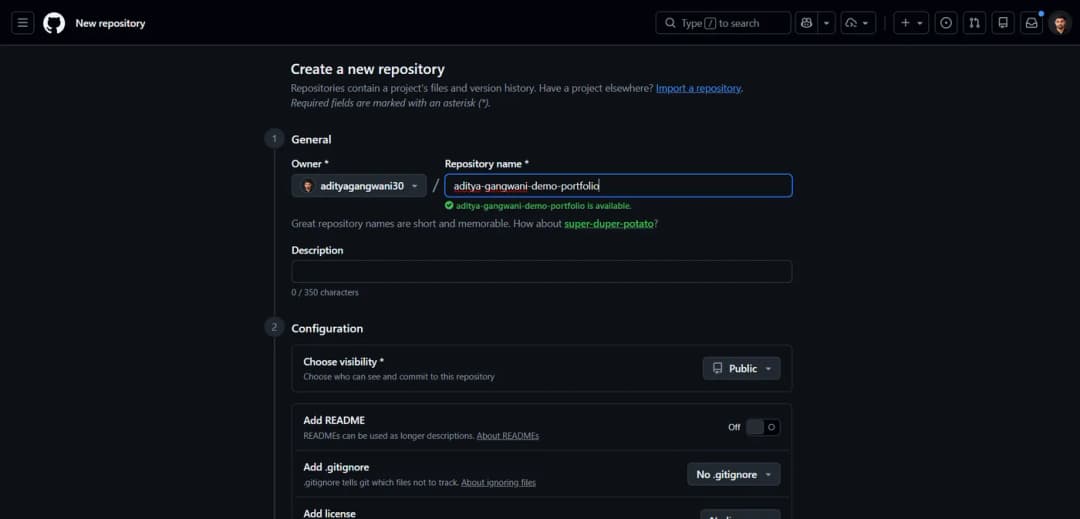
- Type a short repository name
- Choose the visibility: Public or Private
Do this
Create a free GitHub account and an empty repository, with README, .gitignore, and license left unticked (see Create an account and a repository).
Give your AI coding agent the prompt below. It checks for secrets and waits for your approval before it pushes.
Prefer buttons or typing commands yourself? Use GitHub Desktop or the command line instead.
Before and after the push, check that no
.envfile or key went up (keep secrets out).
Prompt
Publish my project to GitHub safely
Have your AI coding agent check for secrets, commit your project, and push it to GitHub with your approval at each risky step.
Replace the [marked] parts with your own details.
Publish my project to GitHub safely.

About me
- My GitHub username: [your GitHub username]
- Repository name I want: [repository name, for example my-portfolio]
- Visibility: [public or private]

Do these steps in order
1. Before you run any git command, explain in one plain sentence what it does.
2. Check the .gitignore file. It must exclude: node_modules, build output folders (such as .next, dist, build, out), every environment file (.env, .env.local, .env.*), and operating-system files (.DS_Store, Thumbs.db). Create or update it if needed and show me the change.
3. Scan the project for secrets: API keys, passwords, access tokens, private keys, and personal details such as a phone number or home address. List anything you find with the file name. Do not print full secret values. If you find something, stop and ask me what to do.
4. If this folder is not a git repository yet, initialise one and name the branch main.
5. Make a first commit with a clear message.
6. If I need to create the empty repository on github.com first, tell me exactly what to do.
7. Show me the exact commands you will use to connect to GitHub and push. Wait for my approval before pushing anything.
8. If GitHub asks me to sign in, tell me what to expect. Never ask me to paste a password or token into this chat.
9. After the push, give me the repository URL and a short list of what was uploaded.

Rules
- Do not delete, move, or rewrite my project files, apart from .gitignore.
- Do not force-push.
- If a command fails, show me the error and explain it before trying a fix.
You’re done when your project’s files show on your repository page on github.com, with no .env file among them.
Show me how, step by step
Create an account and a repository
Create a free GitHub account
Sign up with an email address you will keep long term, and pick a username you are happy to show employers, clients, or anyone else you share your work with: it appears in your repository’s web address. Creating an account on GitHub (opens in a new tab)
Create a new repository
Choose yourself as the owner, give it a short name such as
portfolio, and choose public or private (see below; GitHub Pages on GitHub Free needs public). Creating a new repository (opens in a new tab)If you will push an existing project from your computer (path A or C below), leave the options to add a README, .gitignore, or license unticked. An empty repository avoids a conflict on your first push. GitHub Desktop (path B) creates the repository for you, so you can skip this step if you use it.
Public or private? If you are unsure, private is the safer default, unless you plan to host with GitHub Pages on a free GitHub account (see below).
- Public: anyone on the internet can read the repository, including every file and every past commit (see GitHub’s guide: About repositories (opens in a new tab)). If you go public, check the secrets section before your first push.
- Private: only you and people you invite can see it.
Your host affects this choice:
- GitHub Pages: needs a public repository on GitHub Free (see the host comparison).
- Vercel (Hobby plan): public or private both work when the repository belongs to your personal account. On Hobby, Vercel cannot deploy a private repository owned by a GitHub organization (see the Vercel Git docs (opens in a new tab)).
Get your code into the repository
Choose the path that matches how comfortable you feel. If you built the site with an AI coding agent, path A is usually the easiest. If you would rather click buttons, use path B.
Path A: let your AI coding agent do it
Many coding agents can run Git commands for you, inside your project folder. That is convenient, but you should still understand what is happening. Ask the agent to explain each command before it runs, and to stop before it pushes, so you can check nothing private is about to go online.
The prompt near the top of this step asks your agent to work exactly that way.
Path B: GitHub Desktop
GitHub Desktop is GitHub’s free app for Windows and macOS that does the same job with buttons instead of commands. You add your project folder to the app, make a first commit, then choose Publish repository. The publish dialog has a Keep this code private checkbox; leave it ticked for a private repository. Labels may differ slightly between versions. Adding an existing project to GitHub using GitHub Desktop (opens in a new tab)
Path C: the command line
A terminal is a window where you type commands instead of clicking. Most code editors have one built in (look for a Terminal menu). Open it so that it is pointing at your project folder, the one that contains your site’s files. This path needs Git installed on your computer; if the first command below prints an error instead of a version number, use path A or B instead. Run these one at a time, in order.
git --versionChecks that Git is installed.
git initTurns your project folder into a Git repository. You only do this once per project.
git add .Selects every file in the folder for the next commit, except anything listed in .gitignore. Check that file exists and covers node_modules and .env files before you run this.
git config --global user.name "Your Name"Tells Git who you are. You only do this once per computer. Replace Your Name with your own name; it is attached to every commit you make and is visible to anyone who can see the repository (everyone, if it is public). Official guide: Setting your username in Git (opens in a new tab).
git config --global user.email "you@example.com"Sets the email attached to your commits, which is also visible in a public repository. To keep your personal address private, use the private noreply email shown in the email settings of your GitHub account.
Either way, use an email that is on your GitHub account (or its noreply address). Otherwise hosts such as Vercel may not link the commit to you, and deployments can be skipped. Why aren’t commits triggering deployments on Vercel? (opens in a new tab)
git commit -m "Initial portfolio"Saves the selected files as your first snapshot, with the message “Initial portfolio”.
git branch -M mainNames your branch “main”, the usual default on GitHub and the branch both hosts in this guide publish from.
git remote add origin https://github.com/YOUR-USERNAME/YOUR-REPO.gitTells Git where your GitHub repository lives. Replace YOUR-USERNAME and YOUR-REPO with your own; GitHub shows the full address on the page of your new, empty repository.
git push -u origin mainUploads your commits to GitHub. The -u part remembers the destination, so next time you can just type git push.
Note
Signing in when you push
The first time you push, you will probably be asked to prove who you are. Depending on your computer, GitHub may open a browser window for you to sign in, or a credential manager may handle it. Follow the official GitHub or operating-system prompt. Never paste your GitHub password or any access token into an AI chat.
If the terminal asks for a username and password instead, your GitHub account password will not work there: GitHub no longer accepts account passwords for Git. Use path B (GitHub Desktop) instead, or create a personal access token (a long, password-like code you generate in your GitHub settings) with permission to write to this repository, and paste it at the password prompt in the terminal, never into an AI chat. Official guide: About remote repositories (opens in a new tab).
Last resort: upload files in the browser
On your repository’s page on GitHub you can choose Add file → Upload files, drag files in, and commit them. Browser uploads are limited to 25 MiB per file and up to 100 files at a time, and you will have to repeat the upload by hand every time you change something. Never upload the node_modules or .next folders (they are generated and huge) or any .env file (it may contain secrets). Official guide: Adding a file to a repository (opens in a new tab).
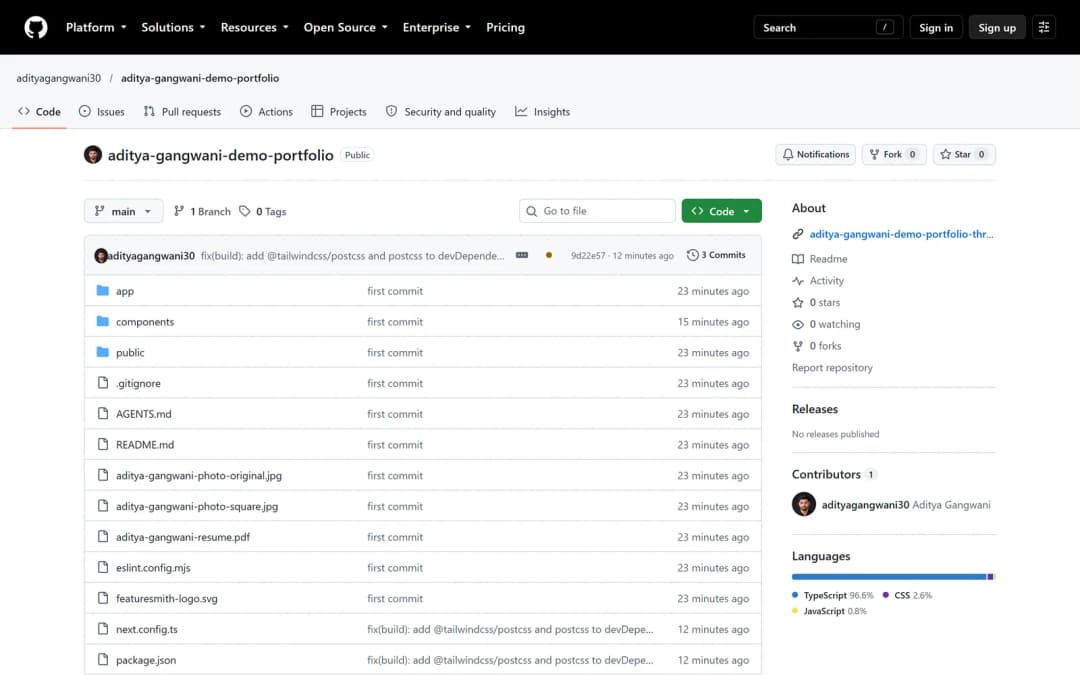
- Your repository and its visibility
- Your project files, pushed from your computer
- The latest commit and the total number of commits
Update your site later
Once your site is live (step 7: Vercel or GitHub Pages), updating it is a loop: edit your files, commit, push. Your host notices the push and publishes the new version automatically. Vercel starts a new deployment; on GitHub Pages it can take up to 10 minutes for changes to appear. Your AI agent or GitHub Desktop can do the commit and push for you; on the command line it looks like this:
git statusLists the files you have changed since the last commit. Read it: if you see a file you did not expect, especially a .env file, stop and find out why.
git add .Selects all changed files for the commit.
git commit -m "Update projects section"Saves the snapshot. Write a message that says what changed, so your history stays readable.
git pushSends the new commit to GitHub.
Keep secrets out of your repository
A secret is anything that grants access or that you would not print on a public poster: an API key (a password-like code that lets a program use a paid or private service), passwords, access tokens, and private details such as your phone number or home address. A typical portfolio needs no secrets at all. If you add a contact form through a third-party service, it may give you a key that is designed to be public; follow that service’s own documentation on where to put it.
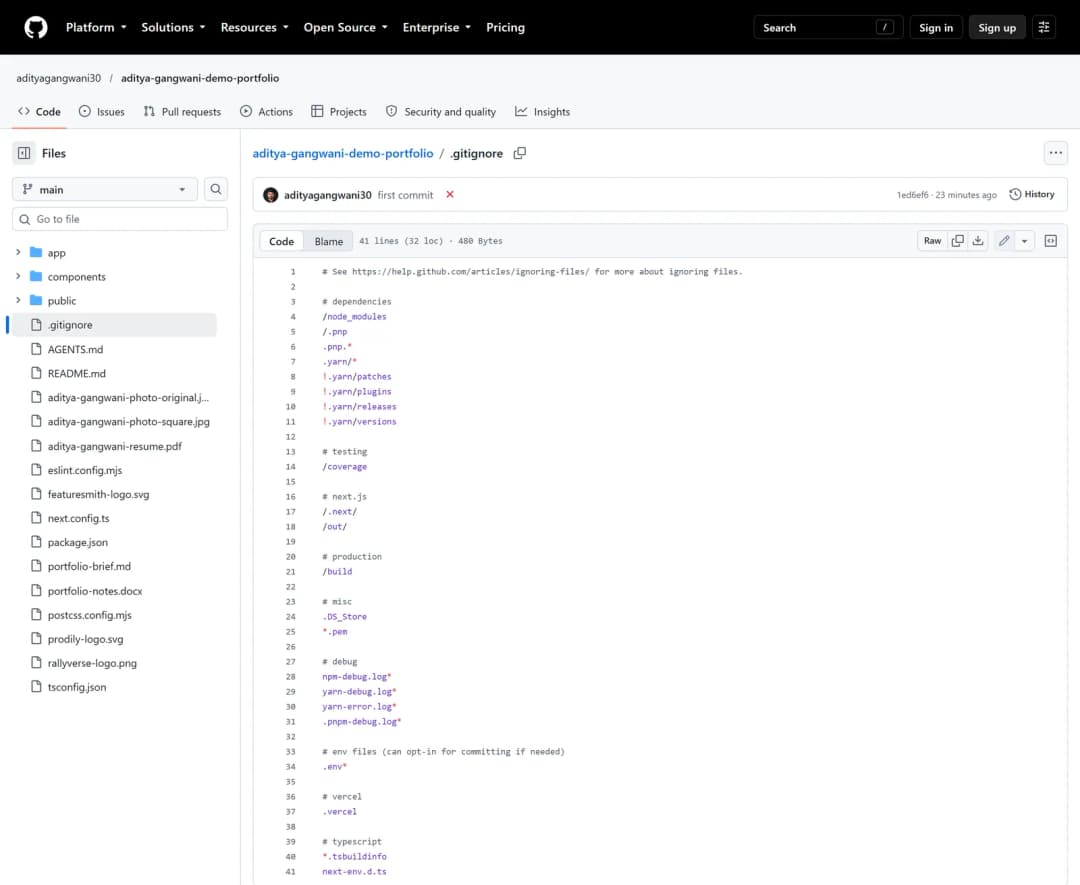
- The .gitignore file at the top level of the repository
- Installed packages and build output stay off GitHub
- .env files with keys and passwords are never uploaded
Watch out
Anything you commit to a public repository is public
That includes old commits, not just the current files. To stay safe:
- Never commit API keys, passwords, tokens, or
.envfiles. - Keep
.envfiles listed in.gitignore. If your site truly needs a real secret, it must stay on a server: on Vercel, store it as an environment variable instead (covered in step 7). A GitHub Pages site is static files only, and everything it sends to the browser can be read by visitors, so it should never use a secret. - If a secret does get pushed, revoke or rotate it first (make the old key useless at the service that issued it), then remove it from the repository. Removing sensitive data from a repository (opens in a new tab)
Why it matters / background
Your AI tool has built a portfolio that runs on your computer. Before anyone else can see it, the code needs a home online that a hosting service can read. That home is GitHub. This step explains the handful of terms you need, then gives you three main ways to get your project there, plus a browser-upload fallback.
If your project is already on GitHub (some AI tools create the repository for you), check the secrets section and the host comparison below, then move on to step 7 for Vercel or GitHub Pages.
GitHub in plain English
Git is a tool that records the history of a folder of files. GitHub is a website that stores that history online, so it is backed up, shareable, and readable by hosting services such as Vercel and GitHub Pages. You will meet these words throughout the rest of the guide:
- Repository
A project folder plus its full history of changes. People shorten it to “repo”. Your portfolio will live in one repository.
- Commit
A saved snapshot of your files with a short message describing what changed, such as “Add projects section”. You can always look back at, or return to, an earlier commit. About commits (opens in a new tab)
- Push
Sending the commits you made on your computer up to GitHub. Until you push, they exist only locally.
- Branch (main)
A separate line of work inside a repository. Your project starts with one branch, usually called
main. For a personal portfolio you can do all your work onmain.- .gitignore
A small text file listing files and folders Git should never record, such as downloaded packages (
node_modules), build output, and files holding secrets (.env). Ignoring files (opens in a new tab)- Source code vs website
The code in GitHub is the recipe. Your host (Vercel or GitHub Pages) takes that recipe, cooks it (runs the build, if your site has one), and serves the finished dish at a web address. Changing the recipe on GitHub is how you change the live site.
Why version control matters
- You can undo a bad AI edit. AI tools sometimes change more than you asked. If you commit each working version, you can return to it quickly instead of trying to describe what used to be there.
- You get a history. Every commit shows what changed and when, which makes it much easier to work out when something broke.
- Your host publishes from it. Once you set up Vercel or GitHub Pages in step 7, every push to the branch your host publishes from (normally
main) publishes a new version of the site.
If it breaks
- Sign-in fails, or the terminal asks for a password: read the sign-in note in path C.
- A key or
.envfile went up by mistake: revoke it first, then follow Keep secrets out of your repository. - Something else: look up the symptom in the Help desk table, or undo a change that broke things.
Step 06 of 10Publish5 min
Step 6: Choose your host
In this step: Choose where to host your site: compare Vercel and GitHub Pages, and pick the one that fits.
Aditya
I host this site on Vercel, but both hosts here can publish a portfolio from your repository at no cost. The question that decides it is whether your site needs code that runs on a server.
Do this
Find out whether your site needs a server. Not sure? Give your AI tool the prompt below; it only reads your project.
Choose Vercel if it needs a server, if you want a private repository, or if you want the least setup.
Choose GitHub Pages if it is static (plain HTML, CSS, and JavaScript, or a static export) and your repository can be public.
Check the costs and limits in the comparison, then pick your host below.
Prompt
Which host fits my project?
Have your AI tool inspect your project and tell you whether it needs a server, which host fits, and what each would need, without changing anything.
Help me choose where to host my portfolio: Vercel or GitHub Pages. Do not change anything yet.

Inspect this project, then answer in plain language
1. Which framework or stack does it use, and does it have a build step?
2. Does it need server-side code to work? Look for API routes, server-side form handling, server actions, middleware, or anything else that must run on a server. List what you find, with file names.
3. Which host fits it better, Vercel or GitHub Pages, and why? Answer in two or three sentences.
4. What config changes would each host need? For Vercel: any settings or files. For GitHub Pages: whether it needs a static export, a base path (if the site will live at /repository-name), a .nojekyll file, or a GitHub Actions workflow.
5. What, if anything, would stop working on GitHub Pages, such as a contact form that needs a server?

Rules
- Do not edit, create, or delete any files. Only read and report.
- If you are unsure about something, say so instead of guessing.
You’re done when you have picked one host below, so step 7 shows only its steps.
How the two hosts differ
Choose your host: Vercel or GitHub Pages
With your code on GitHub and nothing private in it, you are ready to put it on the internet. A host is the service that takes your code from GitHub and serves it at a web address. This guide covers two that can publish straight from your repository at no cost: Vercel and GitHub Pages. Both suit a portfolio. The biggest difference is whether your site needs code that runs on a server.
Free plans come with conditions and usage limits, and both companies can change them, so check the official pages linked below before you rely on them.
| Topic | Vercel | GitHub Pages |
|---|---|---|
| What it can run | Static sites, plus server code, such as Next.js server features, API routes, and form handlers, through Vercel Functions. Vercel Functions (opens in a new tab) | Static files only: HTML, CSS, and JavaScript. No server-side code, such as PHP, Ruby, or Python. What is GitHub Pages? (opens in a new tab) |
| Cost and terms | Free on the Hobby plan, which is for personal, non-commercial use. Usage limits apply. Vercel Hobby plan (opens in a new tab) | Free on GitHub Free for public repositories. Not allowed as free hosting for an online business, e-commerce, or a site mainly for commercial transactions. Usage limits apply (see step 7). GitHub Pages limits (opens in a new tab) |
| Repository visibility | Public or private, if the repository belongs to your personal account. Hobby cannot deploy a private repository owned by a GitHub organization. | Public only on GitHub Free. Paid GitHub plans can also publish from a private repository; the site itself is still public. |
| Free web address | Something like your-project.vercel.app, shown on the project’s dashboard. | <username>.github.io for a repository named that way, or <username>.github.io/<repository> for any other repository (see site types). |
| Setup effort | Import the repository. Vercel detects the framework in many cases, so there is often little to configure. | Choose a publishing source in the repository’s Pages settings. A site with a build step may also need a static export, a base path, and a GitHub Actions workflow. |
| Custom domain and HTTPS | Supported, with a free HTTPS certificate set up automatically once your DNS records check out (see step 9). | Supported, with a free HTTPS certificate; you turn on Enforce HTTPS in the Pages settings once it becomes available (see step 9). |
Pick one. You only need one host, and you can follow just its panel in step 7.
- Choose Vercel if your site uses server features (for example Next.js API routes or form handling on the server), you want to keep the repository private, or you want the least configuration.
- Choose GitHub Pages if your site is plain HTML, CSS, and JavaScript or a static export, you are happy for the repository to be public, and you want everything in one place on GitHub. A contact form can still work there through a third-party form service that runs in the browser.
- Not sure? Ask your AI tool whether your project needs a server. The prompt above has it inspect the project and answer before changing anything.
Next: step 7 (Vercel) or step 7 (GitHub Pages).
Step 07 of 10Publish14 min
Step 7: Go live
In this step: On Vercel, import your GitHub repository, publish it to a free vercel.app address, and let every future push update the live site automatically. On GitHub Pages, publish a static site from your repository to a free github.io address, choose between publishing from a branch or with GitHub Actions, and set the base path a project site needs.
Aditya
This is where your site gets a public address. Follow the panel for the host you picked. I deployed this site with the Vercel steps.
Deploy on Vercel
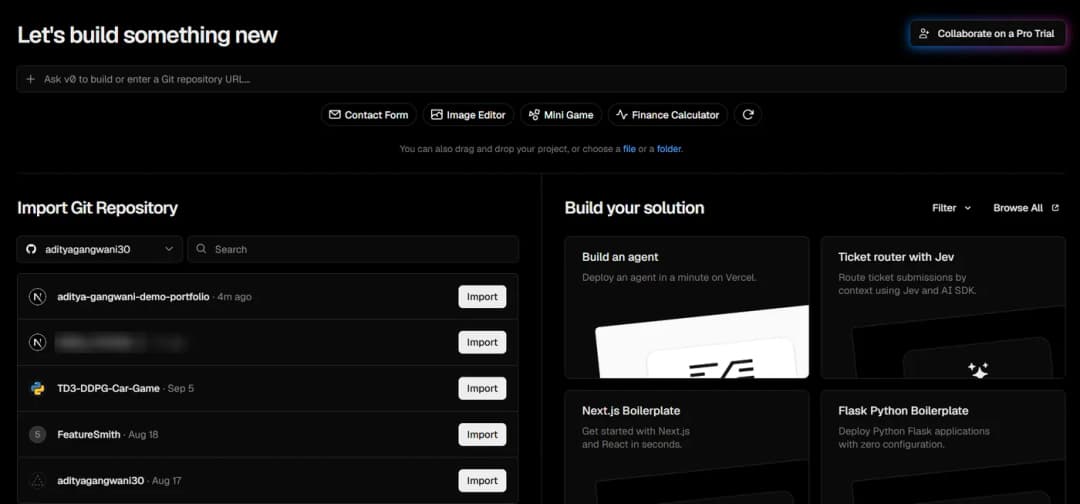
- Your connected GitHub account
- Find your portfolio repository
- Select Import
Do this
Give your AI tool the readiness prompt below and fix anything it marks High.
Sign up for Vercel’s free Hobby plan with your GitHub account, and let it access your portfolio repository.
Choose Add New… → Project, then Import next to your repository.
Keep the settings Vercel detects and select Deploy (all nine steps).
Open your
vercel.appaddress and test every page, on your phone too.
Prompt
Check my project is ready for Vercel
Get a prioritised list of deployment problems and the right build settings, without your AI tool changing anything yet.
Check whether my project is ready to deploy on Vercel.

Act as a careful deployment reviewer. Inspect this project and report what is missing. Do not change any files yet.

Check these things
1. Framework and build: which framework this is, the build command, and the output directory Vercel should use. If it is plain HTML, CSS, and JavaScript with no build step, say so.
2. package.json (if there is one): the scripts (dev, build, start) and any dependency that is missing.
3. Node.js version: whether the project needs a specific version, and where that is declared.
4. File names: imports, image paths, or links whose upper/lower case does not match the real file name. These can work on my computer but fail on Vercel.
5. Broken links and missing files: images, fonts, PDFs (such as a resume or work samples), internal pages.
6. .gitignore: it should exclude node_modules, build output, and every .env file.
7. Environment variables: every one the code reads, whether each is really needed, and whether any secret is written directly in the code.
8. Hard-coded localhost addresses or other development-only URLs.
9. Basics: page titles, meta description, favicon, and social preview image.
10. If you can, run the production build locally and tell me the actual result.

How to report
- A numbered list of findings, each marked High (blocks deployment), Medium (something visibly broken), or Low (polish).
- For each finding: the file, what is wrong, and the fix you recommend.
- The exact settings I should choose in Vercel: Framework Preset, Root Directory, build command, output directory.

Rules
- Make no destructive changes: do not delete files, remove content, or rewrite git history.
- Ask me before editing anything, and show me the planned change first.
You’re done when your project shows Ready in Vercel and its vercel.app address opens your site.
Show me how, step by step
Check your project is ready
Before you deploy, two things should be true: your code is on GitHub (step 5), and the site works when you preview it on your computer. A failed first deployment often comes from a small problem that also exists locally, such as a misspelled file name or a missing package. Ask your AI tool to look for those first.
The readiness prompt at the top of this panel does that check for you.
Deploy in nine steps
Vercel’s dashboard changes from time to time, so the labels below are accurate at the time of writing but may differ slightly on your screen. The official guide for this flow is Deploying Git repositories with Vercel (opens in a new tab).
Create a Vercel account
Go to vercel.com and sign up for the Hobby plan. Signing up with your GitHub account is the easiest option, because it links the two services from the start.
Connect GitHub and grant access to your repository
Vercel reads your code through its GitHub app, and GitHub asks you which repositories it may access: all of them, or only the ones you select. Choosing only your portfolio repository is fine.
If your repository does not show up later, change this on GitHub: Settings → Applications → Installed GitHub Apps, then Configure next to Vercel, and add the repository under Repository access. Reviewing and modifying installed GitHub Apps (opens in a new tab)
Import your repository
On your Vercel dashboard, choose Add New… → Project (it may appear as New Project). Find your portfolio repository in the list and select Import.
Check the framework preset and build settings
Vercel usually detects your framework, such as Next.js or Vite, and fills in the build settings for you. In most cases you can leave them alone. Configuring a build (opens in a new tab)
- Plain HTML site (just
.html,.css, and.jsfiles): choose Other as the Framework Preset, turn on the Override toggle next to Build Command, and leave the build command empty. With Other, Vercel serves thepublicfolder if your repository has one, and otherwise the repository root. So if yourindex.htmlsits at the root but you also have a folder namedpublic, ask your AI tool to fix the output directory before you deploy. - Site inside a subfolder of the repository: set Root Directory to that folder.
- Unsure? Use the settings your readiness prompt recommended.
Vercel: New Project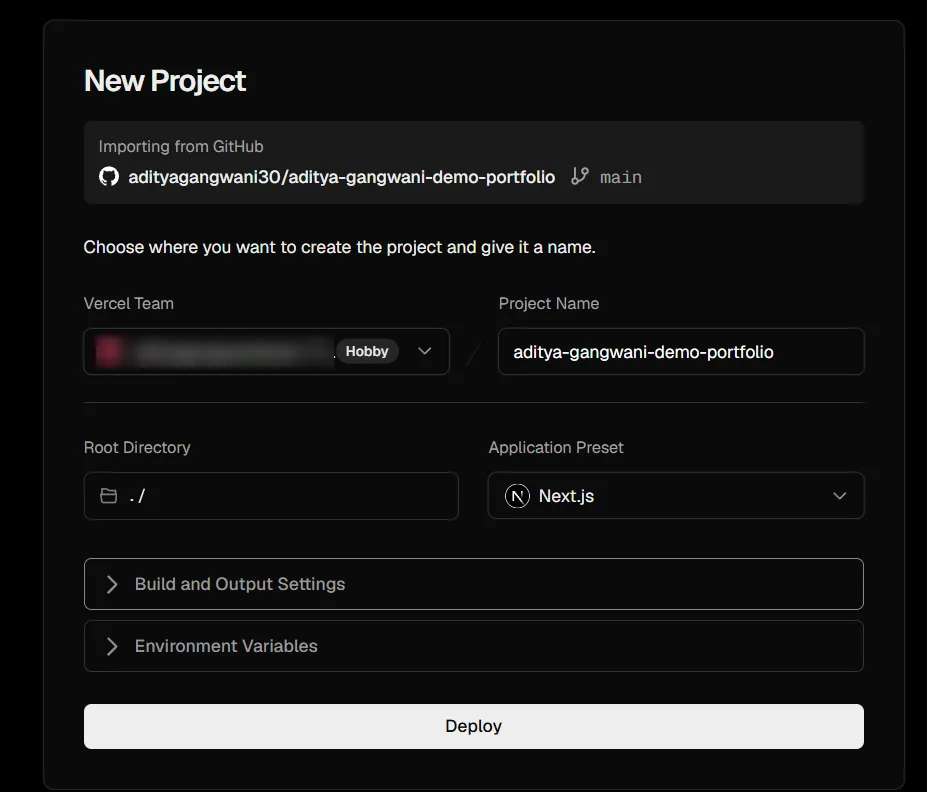
- The repository and branch being imported
- The framework Vercel detected
- Select Deploy
- Plain HTML site (just
Add environment variables, only if you need them
An environment variable is a named setting, such as a key for a contact-form service, that is stored in Vercel instead of in your code. Most portfolios need none, so skip this unless your AI tool or a service’s documentation told you to add one. Environment variables (opens in a new tab)
Deploy
Select Deploy. Vercel copies your code, runs the build, and shows its progress. A small portfolio usually finishes quickly, but there is no fixed time.
Open and test your live URL
When the build succeeds, your project’s dashboard shows its address, something like
your-project.vercel.app. Open it and test it as a stranger would:- Visit every page and click every link in the navigation.
- Open your contact links: email, any resume or CV, and profiles such as LinkedIn, GitHub, Behance, or Dribbble.
- Check the site on your phone, not only on your laptop.
- Look for missing images, which often point to a file-name problem.
Vercel: Overview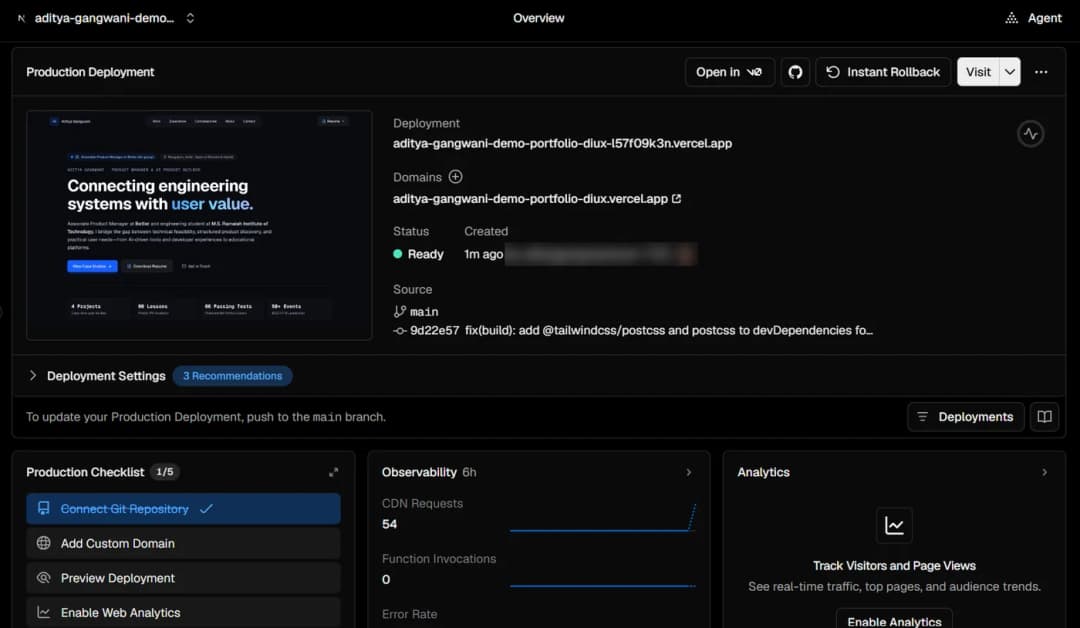
- Your free vercel.app address
- Status Ready means the site is live
- Visit opens the live site
Let future pushes deploy automatically
From now on you do not need to touch Vercel to update the site. Every push to your production branch (normally
main) creates a new production deployment, which is what visitors see. Pushes to any other branch create preview deployments with their own URLs, so you can check a change before it goes live. Vercel for GitHub (opens in a new tab)If a deployment fails, read the build log
Open your project in Vercel, go to Deployments, select the failed deployment, and expand the Building logs. Scroll to the first error message (often shown in red); later errors are frequently side effects of the first one. Troubleshooting a build (opens in a new tab)
Then hand the error to your coding agent, as described below, so it can fix it and run the build on your computer before you push again. Vercel logs (opens in a new tab)
Watch out
Share your production address
Your production address is public. Preview and per-deployment URLs may ask visitors to sign in to Vercel (this is called Deployment Protection), depending on your project’s settings. Share the production address from your project’s dashboard, and never rely on a URL staying private (see Deployment Protection (opens in a new tab) and Generated URLs (opens in a new tab)). Do not deploy anything you would not want a stranger to read, and never put secrets in your code: use environment variables for anything sensitive.
Your portfolio is now live. The vercel.app address keeps working without you buying anything, as long as your use stays within the Hobby plan’s terms and limits. If you would like an address of your own, such as yourname.com, step 8 helps you decide whether it is worth it.
Why it matters / background
Note
Pick one host
Not sure Vercel is right for you? Compare hosts in step 6. Chose GitHub Pages? Skip to the GitHub Pages panel.
Vercel is a hosting platform: it reads your code from GitHub, runs the build that turns it into a website, and serves that website at a public address. On Vercel’s free Hobby plan, which is for personal, non-commercial use, you do not need to buy anything for this step. At the end you will have a live site on a free vercel.app address that you can share today. This site is hosted the same way, from a GitHub repository deployed on Vercel.
What the free Hobby plan covers
Vercel’s free plan is called Hobby. It is meant for personal, non-commercial projects, and a personal portfolio is a typical example (see Vercel Hobby plan (opens in a new tab)). Keep these points in mind:
- Non-commercial means non-commercial. Vercel’s fair use guidelines count things like taking payments, being paid to build or host the site, running ads, or affiliate-focused sites as commercial use, which needs a paid plan. Fair use guidelines (opens in a new tab)
- Selling your services? Check first. If your site exists mainly to win paid work, for example as a freelancer or a small business, read those guidelines before relying on Hobby, and move to a paid plan if your use counts as commercial (this portfolio uses a commercial-compliant plan).
- There are usage limits. A small personal portfolio is unlikely to reach them, but if you hit a Hobby limit you usually have to wait for it to reset or upgrade.
- Plans change. Limits and terms can change over time, so check the plan page before relying on any specific number.
If it breaks
- The build failed: open its build log (the last item in the deploy list), then hand the error to your agent with the prompt below.
- Your repository is missing from the import list: give Vercel access to it on GitHub (item 2 of the same list).
- The site is live but something looks wrong: find the symptom in the Help desk table.
Prompt
Fix my failed Vercel deployment
Give your coding agent the exact error so it can find the cause, fix it, and check the build before you push again.
Replace the [marked] parts with your own details.
My Vercel deployment failed. Fix it in this project.

ERROR
[paste the error lines from the Vercel build log, or attach a screenshot of them]

1. Explain the cause in one or two sentences.
2. Make the smallest fix. Do not remove content or features.
3. Run npm run build and confirm it succeeds.
4. List the files you changed, so I can push the fix.
Deploy on GitHub Pages
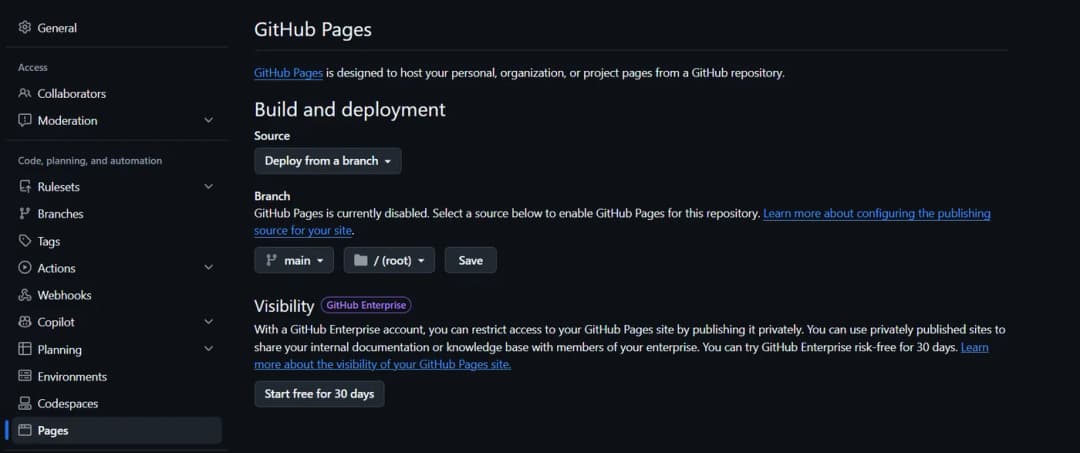
- Open Pages in the repository’s Settings
- Choose the source: a branch or GitHub Actions
- Pick the branch and folder, then select Save
Do this
Keep your repository public (GitHub Free needs it) and name it for your site type:
<username>.github.ioor any name (compare the two).Give your AI tool the prompt below. It checks your site can be static, then sets up the export and base path.
In Settings → Pages, set Source to a branch, or to GitHub Actions if your site has a build step (how to choose).
Push the changes, wait for the run to finish, then select Visit site (see Publish and find your address).
Prompt
Prepare my project for GitHub Pages
Find out whether your site can run on GitHub Pages, then get the static export, base path, and publishing workflow set up with every change explained.
Replace the [marked] parts with your own details.
Prepare my project for GitHub Pages.

Act as a careful deployment engineer. GitHub Pages only serves static files: HTML, CSS, JavaScript, and images. It cannot run server code, API routes, or a database.

My setup
- Site type: [user site or project site]
- Address I expect: [https://<username>.github.io or https://<username>.github.io/<repository>]
- How I want to publish: [GitHub Actions or deploy from a branch]

Step 1: Check first, change nothing
1. Inspect the project. Tell me which framework it uses, or whether it is plain HTML, CSS, and JavaScript.
2. Tell me whether the whole site can be fully static.
3. List every feature that needs a server (for example API routes, form handlers, Server Actions, middleware, or a database). For each one, give the file and a static alternative.
4. If anything cannot work on GitHub Pages, stop there and wait for my decision.

Step 2: If it can be static, make these changes
1. Static export: if this is a framework, configure a static build. For Next.js, use output: 'export', which builds into the out folder. Skip this for plain HTML.
2. Base path: for a project site, make every link, image, stylesheet, and script work under /<repository>. For Next.js, set basePath and add the base path to next/image src values. A user site needs no base path.
3. Images: for Next.js, set images.unoptimized to true or use a custom loader.
4. Publishing: if I chose GitHub Actions, add a workflow in .github/workflows that builds the site on every push to my default branch and deploys it with actions/configure-pages, actions/upload-pages-artifact, and actions/deploy-pages, with the permissions pages: write and id-token: write. If I chose a branch, remember it can only publish from the root or a /docs folder (if my site has a build step, recommend GitHub Actions instead), make sure index.html is at the top of that folder, and add an empty .nojekyll file next to it.
5. Keep .gitignore excluding node_modules, build output, and every .env file. Put no secrets in the code or the workflow.

Rules
- Explain each change in plain language before you make it.
- Make no destructive changes: do not delete files, remove content, or rewrite git history.
- Ask me before any big decision, such as removing a feature or switching framework.

When you finish
- List every file you changed or created.
- Tell me the exact GitHub Pages settings to choose.
- Explain how to build and preview the static version on my computer, including the address to open.
You’re done when your github.io address shows your site with its styling, images, and links working.
Show me how, step by step
Set up the repository
- Create and push the repository as described in step 5, if you have not already.
- Make it public (see Before you start), after checking the secrets section of step 5. On GitHub Free, making it private later stops it being published there.
- Name it for your site type:
<username>.github.iofor a user site, anything you like for a project site. - Check the entry file. GitHub Pages looks for an
index.htmlfile at the top of the folder it publishes. The name is case-sensitive, soIndex.htmlwill not work. If your site has a build step, the build creates this file for you. Creating a GitHub Pages site (opens in a new tab)
Choose how GitHub publishes your site
GitHub can publish your site in two ways. You choose in the repository’s settings: open the repository on GitHub, select Settings, then Pages in the sidebar (under Code, planning, and automation). Under Build and deployment, the Source menu offers the two options below. Labels are accurate at the time of writing but may differ slightly on your screen. Configuring a publishing source (opens in a new tab)
Deploy from a branch
Best for a plain HTML, CSS, and JavaScript site whose finished files are already in the repository. Choose Deploy from a branch, pick the branch (normally main), pick the folder (/ (root) or /docs), and select Save. From then on, every push to that branch publishes the site again.
Branch publishing can only use the root or a /docs folder, so a site with a build step (such as Next.js, which builds to out) is usually simpler with GitHub Actions.
Publishing from a branch runs your files through Jekyll, a tool that builds static sites, by default. Jekyll skips files and folders whose names start with an underscore, such as Next.js’s _next folder, so those files go missing from your site. To turn Jekyll off, add an empty file named .nojekyll at the top of the publishing folder.
GitHub Actions
Recommended when your site needs a build step, a command that turns your source code into the finished files, as most framework sites do. GitHub Actions is GitHub’s automation service: a workflow file in your repository’s .github/workflows folder tells it what to do. When you choose GitHub Actions as the source, GitHub suggests ready-made workflow templates.
A typical Pages workflow runs on every push to your default branch, and you can also start it by hand. It:
- checks out your code and builds the site;
- uploads the finished files with
actions/upload-pages-artifact; - publishes them with
actions/deploy-pages. This step needs thepages: writeandid-token: writepermissions.
GitHub Actions is free for public repositories; private repositories on paid plans use your plan’s included minutes. Using custom workflows with GitHub Pages (opens in a new tab)
If your site uses Next.js (or another framework)
If your site is plain HTML, CSS, and JavaScript, skip this section. If it uses a framework, the framework must produce plain static files that GitHub Pages can serve. Next.js calls this a static export. Next.js static exports (opens in a new tab)
- Turn on static export. Set
output: 'export'innext.config.next buildthen writes one HTML file per page into a folder namedout, and that folder is what gets published. - Handle images. Next.js’s default image optimisation needs a server. Set
images: { unoptimized: true }or use a custom image loader. Next.js Image (opens in a new tab) - Know what will not work. Features that need a running server are not available: API routes (Route Handlers) that depend on the incoming request, Proxy (also known as middleware), Incremental Static Regeneration (ISR), Server Actions, rewrites and redirects, the default image optimisation, and dynamic routes whose pages are not listed at build time.
- Start from an example if you like. The Next.js team keeps an example project set up for GitHub Pages. Next.js GitHub Pages example (opens in a new tab)
Other frameworks have their own static build settings and output folders (Vite, for example, builds to dist). Check your framework’s documentation, or let the prompt above work it out.
Project sites need a base path
A project site lives in a subfolder of the address: https://<username>.github.io/<repository>. Most sites are written as if they live at the root. A link to /about or a stylesheet at /styles.css then points to https://<username>.github.io/about, which is outside your site. The usual symptom is a home page with no styling, missing images, and links that lead to a 404 page.
The fix is a base path: a setting that tells your site to put /<repository> in front of every address it builds. User sites do not need one.
- Next.js: set
basePath: '/<repository>'innext.config. It applies when the site is built. Links made withnext/linkpick it up automatically, but imagesrcvalues fornext/imageneed the base path added by hand. Next.js basePath (opens in a new tab) - Other frameworks have an equivalent setting. Check your framework’s documentation for its name.
- Plain HTML: use relative links such as
about.htmlandcss/styles.css, without a leading slash.
If you later connect a custom domain to a project site, ask your AI tool to check whether you still need the base path.
Client-side routing. If your site is a single-page app that changes pages in the browser without loading a new file, refreshing an inner page on GitHub Pages may show a 404, because Pages only serves files that exist. The simplest options are:
- a setup that creates one HTML file per page, which Next.js static export does;
- hash-based routing, where page addresses contain a
#.
Some single-page apps use other workarounds. GitHub Pages also supports a custom 404.html page at the top of your publishing folder, which at least lets you show visitors a helpful message. Creating a custom 404 page (opens in a new tab)
Publish and find your address
Choose the source
In Settings → Pages, set Source to the option you picked: a branch and folder, or GitHub Actions.
Push your changes
Commit the changes your AI tool made and push them to GitHub (step 5 shows how). The push is what publishes the site.
If you use GitHub Actions, watch the run
Open the repository’s Actions tab. Your workflow appears there with its progress. Wait until it finishes successfully. If it fails, open the run, select the step marked with a red cross, and read the first error in its log. The “If it breaks” section of this panel shows how to get it fixed.
Open your site
Go back to Settings → Pages and select Visit site. It can take up to 10 minutes for changes to appear, so if you see a 404 straight away, wait a few minutes and reload. Creating a GitHub Pages site (opens in a new tab)
Your address is
https://<username>.github.iofor a user site, orhttps://<username>.github.io/<repository>for a project site.Test it as a stranger would
Visit every page, click every link, open your resume and profile links, and check the site on your phone. Missing styling or images on a project site usually means the base path is wrong.
Publish updates
You do not need to touch the Pages settings again. If you publish from a branch, every push to that branch publishes a new version. If you use GitHub Actions, the workflow normally runs on every push to your default branch.
If a change does not show up, check the Actions tab for a failed run, then wait a few minutes and reload. If an update breaks the site, undo it with git revert and push again; the Help desk walks you through it.
Your portfolio is now live. The github.io address keeps working at no cost as long as you stay within GitHub’s terms and limits. A custom domain, such as yourname.com, is optional: step 8 helps you decide whether it is worth it, and step 9 shows how to connect one to GitHub Pages. If something goes wrong, the Help desk lists common GitHub Pages problems and safe fixes.
Why it matters / background
Note
Pick one host
Not sure GitHub Pages is right for you? Compare hosts in step 6. Chose Vercel? Go to the Vercel panel.
GitHub Pages is GitHub’s own hosting service. It takes the HTML, CSS, and JavaScript files in a repository and publishes them as a website, so your code and your site live in the same place. What is GitHub Pages? (opens in a new tab)
On GitHub Free it costs nothing for a public repository. At the end of this panel you will have a live site on a free github.io address that you can share today.
Before you start
GitHub Pages is a good fit for most portfolios, but it has firm rules. Check these first:
- Static sites only. A static site is a set of files that the browser downloads and shows as they are. GitHub Pages does not run server-side languages such as PHP, Python, or Ruby. In practice that means no form handler running on a server, no API routes, and no database. Creating a GitHub Pages site (opens in a new tab)
- Public repository on GitHub Free. On the free plan, Pages only works with a public repository, so anyone can read your code and its history. Paid GitHub plans can publish from a private repository, but the site itself is still public on the internet. Configuring a publishing source (opens in a new tab)
- Usage rules and limits apply. GitHub restricts commercial use and sets size, bandwidth, and build limits, all covered in Limits and rules below. GitHub Pages limits (opens in a new tab)
When you need more than GitHub Pages
Some features need a server: a contact form that sends email from your own code, visitor logins, a database, or Next.js server features. None of these run on GitHub Pages. You have two options:
- Use Vercel instead, which can run server code (see the Vercel panel). Vercel Functions (opens in a new tab)
- Use a third-party service that runs in the browser, such as a hosted form or email service, and keep the site static.
Not sure which applies? The prompt at the top of this panel asks your AI tool to check for you.
User site or project site
GitHub Pages has two kinds of site, and the kind you pick decides your address and how your repository must be named. Types of GitHub Pages sites (opens in a new tab)
| Site type | Repository name | How many | Address |
|---|---|---|---|
| User site | Must be <username>.github.io, in lowercase | One per account | https://<username>.github.io |
| Project site | Any name, such as portfolio | One per repository | https://<username>.github.io/<repository> |
Which should you choose? If this is your main portfolio and you do not have a user site yet, make it a user site: it gets the cleanest address. Otherwise, use a project site. Project sites work just as well, but they need one extra setting called a base path, explained in Project sites need a base path.
Limits and rules
These are GitHub’s published limits at the time of writing. A personal portfolio is unlikely to reach them. GitHub Pages limits (opens in a new tab)
- Size: the published site may be no larger than 1 GB, and GitHub recommends keeping the source repository under 1 GB.
- Bandwidth: a soft limit of 100 GB per month.
- Builds: a soft limit of 10 builds per hour when publishing from a branch. It does not apply to custom GitHub Actions workflows.
- Time: a deployment that takes longer than 10 minutes times out.
- Rate limits: GitHub may answer some requests with an HTTP 429 error (too many requests).
- Use: GitHub does not allow Pages to be used as free hosting for an online business, an e-commerce site, a site mainly for commercial transactions, or commercial software as a service, and the site must not handle sensitive transactions such as passwords or credit card numbers. A personal portfolio is fine.
If a site goes over these limits, GitHub may stop serving it or email you with suggestions, such as using a content delivery network or another host. Limits can change, so check the official page before relying on any number.
Watch out
Everything you publish is public
A GitHub Pages site is public, and on GitHub Free so is the repository behind it. Never put passwords, API keys, or private documents in your code, and do not publish anything you would not want a stranger to read.
If it breaks
- No styling or missing images on a project site: check the base path.
- The run failed in the Actions tab: copy its first error and give it to your agent with the prompt below.
- Something else: see the GitHub Pages problems in the Help desk, or undo an update that broke the site.
Prompt
Fix my failed GitHub Pages deployment
Give your coding agent the exact error so it can find the cause, fix it, and check the static build before you push again.
Replace the [marked] parts with your own details.
My GitHub Pages deployment failed. Fix it in this project.

ERROR
[paste the error lines from the failed run in the Actions tab, or attach a screenshot of them]

1. Explain the cause in one or two sentences.
2. Make the smallest fix. Do not remove content or features.
3. Run npm run build and confirm it succeeds and creates the out folder.
4. List the files you changed, so I can push the fix.
Tip
Stuck on an error? Hand it to your coding agent
A failed build or a broken page is common on a first deployment, even when the site works on your computer. For example, a build can fail because a package the site needs was never added to package.json. You do not need to understand the message yourself.
- Copy the red error lines, or take a screenshot of them: on Vercel from the failed deployment’s build log, on GitHub Pages from the failed run in the Actions tab. Give them to the coding agent you built the site with, in the same project folder.
- Send them with the short fix prompt under “If it breaks” in your host’s panel above. Then push the fix, and your host deploys again.
- Warnings, often shown in yellow, usually do not stop a deployment. If the site is live and works, you can ask the agent about them later.
- If the same error comes back after two tries, use the longer debugging prompt in the Help desk.
Step 08 of 10Domain6 minOptional
Step 8: Free address or your own?
In this step: Understand hosting, registrars, DNS, and subdomains, then decide whether your host’s free address is enough or a custom domain is worth its yearly cost.
Aditya
This site runs on my own domain, but the free address your host gave you is a fine place to launch. Pick one below; you can change your mind later.
Do this
- Open your live site and note its free address. It is on your host’s dashboard from step 7.
- Compare the two options side by side: yearly cost, setup, and what happens if you change hosts.
- Keeping the free address? Rename your Vercel project first if you want a cleaner name (option A), then share it.
- Want your own domain? Buy it from a registrar, check the renewal price, then go to step 9.
You’re done when you have picked an option above and know which address you will put on your resume.
Domains, DNS, and hosting in plain words
At the end of step 7, on Vercel or GitHub Pages, your portfolio already has a public web address. You do not need to buy anything to finish this guide.
Five terms worth knowing
A quick picture first: your domain is the address people type, DNS is the directory that says which building that address belongs to, and your hosting is the building where the site actually lives. Three different jobs, often done by three different companies.
- Hosting provider
The company whose computers store your site and send it to visitors. In this guide that is Vercel or GitHub Pages. Either one takes your project from GitHub, builds it if it needs building, and serves the result.
- Domain registrar
The company you buy and renew a domain name from, such as Name.com, Namecheap, Hostinger, or GoDaddy. Buying a domain gives you the right to use the name; it does not put a website on it.
- DNS hosting
The service that answers the question “where does this name point?” whenever someone visits your domain. By default it is usually your registrar, but it can be a separate company such as Cloudflare, or, if you host on Vercel, Vercel itself. Whoever does this job is where you make DNS changes.
- Domain name
The main name you own, such as
example.com. It is also called the root or apex domain.- Subdomain
A name added in front of a domain, such as
www.example.comorportfolio.example.com. Your free host address, something likeyour-project.vercel.apporyour-username.github.io, is also a subdomain: one that belongs to your host’s domain rather than yours.
The two options in detail
Option A: keep the free address
Both hosts give your site a free address that costs nothing extra on their free plans (within each plan’s terms and usage limits), works over HTTPS (the padlock in the address bar: an encrypted connection) straight away, and can be shared shortly after your first deployment finishes. GitHub serves github.io addresses over HTTPS automatically (GitHub: Securing your site with HTTPS (opens in a new tab)).
On Vercel, the address looks something like your-project.vercel.app. You can find the exact one on your project’s dashboard. The first part of the address comes from your project name. If you would like a cleaner address, you can rename the project in Vercel’s project settings. New deployments then use the new name: push a change or redeploy, then check the address on your dashboard. Old vercel.app links may stop working after a rename, so do this before you share the address. Official guide: Vercel: Changing your project name (opens in a new tab).
On GitHub Pages, the address depends on the type of site (GitHub: Types of GitHub Pages sites (opens in a new tab)):
- A user site lives at
https://<username>.github.io. It comes from a repository named exactly<username>.github.io, and each account can have only one. - A project site lives at
https://<username>.github.io/<repository>. The repository name is part of the address, so choose it with care.
Step 7 (GitHub Pages) explains which type to pick and how each one affects your setup.
The trade-offs, whichever host you use:
- Your host’s brand is in your URL. For a student or early-career portfolio this is common and perfectly acceptable, but it reads less like a personal brand.
- The address is tied to your host. If you later move your site to another host, this URL stops pointing to it, and any links you shared on your resume, profiles, or applications break.
Option B: use a custom domain
A custom domain is a name you buy yourself, such as yourname.com. This site uses one: it is hosted on Vercel, but visitors only ever see my own domain. Vercel and GitHub Pages both support custom domains.
What it gives you:
- A short address with your name, which is easy to remember and looks deliberate on a resume, a pitch, or an email signature.
- An address you keep if you change hosts. The domain is yours, so if you ever switch hosting providers, you update your DNS records and every link you have shared keeps working.
- The option of an email address at your own domain later, through an email provider. That is usually a separate service with its own setup.
What it costs you:
- A yearly fee. A domain is a separate purchase that you renew every year. Prices vary by registrar and by ending (
.com,.me,.dev, and so on), and the renewal price is often higher than the first-year price, so check that before you buy. - Some setup. You add DNS records at whichever company hosts your DNS, which may not be the company you bought the domain from. Step 9 walks you through it for both hosts.
Note
Two things people often get wrong
- Buying a domain does not deploy anything. A newly bought domain often shows the registrar’s parking page until you point it at your host.
- Connecting a domain usually does not require rebuilding your site. Your code and your GitHub repository stay as they are. You add the domain in your host’s settings (on Vercel, the project’s Domains settings; on GitHub Pages, the repository’s Pages settings) and create a few DNS records. If GitHub Pages publishes from a branch, GitHub adds a small file named
CNAMEto that branch for you. One exception: a GitHub Pages project site that uses a base path may need it removed once the domain is connected (see step 9).
Side by side
| Question | Free host address | Custom domain |
|---|---|---|
| Extra cost | None on the host’s free plan (terms and usage limits apply) | Yearly purchase and renewal; prices vary |
| Time to go live | Soon after your deployment finishes (GitHub Pages can take up to about 10 minutes) | After DNS records are added and verified |
| What visitors see | your-project.vercel.app or your-username.github.io | yourname.com |
| HTTPS | Included | Included; your host sets up a certificate once DNS is verified (often minutes, sometimes longer) |
| If you change hosts | The address changes and old links break | Update DNS records; links keep working |
| Setup skills | None beyond step 7 | Copying a few DNS records (step 9) |
Tip
A custom domain is optional
Your portfolio is fully public and shareable on the free address. If you are not sure, launch on your vercel.app or github.io address now and add a custom domain later; both hosts let you add one to an existing site whenever you are ready. If you are skipping the domain for now, go straight to the launch checklist in step 10, or to the Help desk if something is not working yet.
Step 09 of 10Domain22 minOptional
Step 9: Connect your domain
In this step: Add your domain in Vercel or GitHub Pages, copy the exact DNS records your host shows you, verify the connection, and wait for HTTPS before you share the new address.
Aditya
There is no code here, though I think of it as the most technical step. You copy a few values from your host into your domain company’s DNS page, so keep both tabs open side by side.
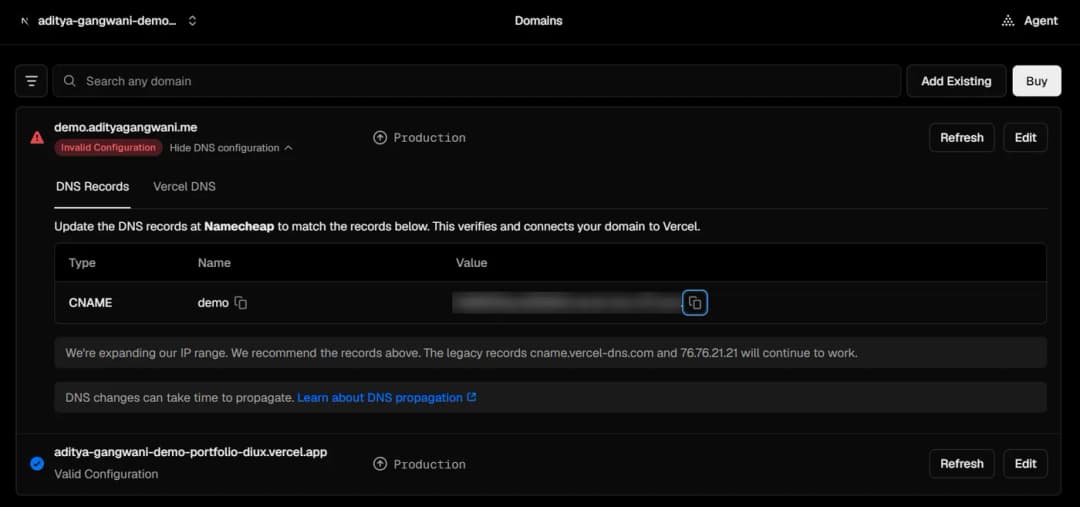
- Invalid Configuration until the DNS record is in place
- The record type and name to enter at your provider
- Copy the value instead of typing it
Do this
- Check that your site works on its free address and find out who manages your DNS (before you start).
- Before you change any DNS, add the domain at your host: Settings, then Domains on Vercel, or Settings, then Pages on GitHub.
- Copy each record’s Type, Name, and Value into your DNS provider. Leave MX and TXT records alone.
- Wait for the domain to verify and HTTPS to turn on, then open your address with and without
www.
You’re done when your host shows the domain as valid and every version of the address opens your site over HTTPS.
Before you start: checks and the Host box
This first part of the step applies to both hosts. Then follow only the section for your host: If you host on Vercel or If you host on GitHub Pages.
Before you start
Check these three things first. Each one prevents a common dead end.
- Your site is already deployed and working on its free address (
vercel.apporgithub.io). Open it and make sure it works. A custom domain only gives a working site a new name; it cannot fix a broken deployment. If something is wrong, go back to step 7 (Vercel) or step 7 (GitHub Pages) first. - You can log in to the account where your DNS is managed. That is usually where you bought the domain, but not always. If a friend, an agency, or a former employer set the domain up, get access before you begin.
- You know who manages your DNS. Look up your domain’s nameservers (defined below). Your registrar’s dashboard usually lists them on the domain’s overview page. You can also enter your domain in the Google Admin Toolbox Dig tool (opens in a new tab) and choose the
NSrecord type. The nameserver names usually contain the name of the company that answers for your domain, and that company’s dashboard is where you will make every change in this step.
What to type in the Host or Name box
Every DNS record has a field for which name it applies to. Vercel’s dashboard calls it Name; your DNS provider may call it Host, Name, or something similar. This field is a common source of mistakes, so check it against this table.
| You want to connect | Usually enter | Watch for |
|---|---|---|
The root domain, example.com | @ | Some providers want the box left blank instead (Name.com does this). A few ask for the full domain; their help page will say so. |
www.example.com | www | Type only www. The provider adds the rest of the domain for you. |
Another subdomain, such as portfolio.example.com | The label only, such as portfolio | Same rule: just the part before your domain. |
Many providers add your domain to whatever you type. If you enter www.example.com in the Host box, you may accidentally create www.example.com.example.com. Only type the full domain if your provider’s instructions ask for it.
Watch out
Back up your DNS records before you change anything
Take a screenshot of your current records, or use your provider’s export option if it has one. Do not delete records you do not recognise. MX and TXT records often run your email (Google Workspace, Microsoft 365, Zoho, and others) and prove domain ownership to other services. Only change the records for the root domain (@) and www that conflict with what your host asks for, and use the exact values your host shows (Vercel: the domain card; GitHub Pages: the values in GitHub’s custom-domain docs).
Watch out
Do not change nameservers unless you mean to move all of your DNS
Switching nameservers to Vercel (or anyone else) hands over your entire DNS zone. Any record that is not recreated at the new provider stops working, which often means email silently stops arriving. If you do choose that route, first copy every existing record, especially MX and TXT records, into the new provider, and expect the switch to take up to 24–48 hours. For a portfolio, adding the A and CNAME records your host gives you is usually all you need.
Connect on Vercel, step by step
If you host on Vercel
Follow this section if you deployed with Vercel in step 7. On GitHub Pages instead? Skip to If you host on GitHub Pages.
Connect your domain on Vercel, step by step
Dashboards change, so labels may differ slightly from what you see. The paths below were checked against Vercel’s documentation at the time of writing.
Make sure the site is deployed and working
Open your project’s
vercel.appaddress in a browser and click through a few pages. If anything is broken, fix it first with the help of step 7 (Vercel).Open your project in Vercel
Log in to Vercel and click the project that holds your portfolio.
Go to Settings, then Domains
In the project, open Settings and choose Domains in the sidebar. This page lists every address your project answers to, including the
vercel.appone. Vercel: Adding a domain (opens in a new tab)Add your domain
Click Add Domain and type your root domain, for example
example.com, withouthttps://or a trailing slash.Vercel will usually offer to add
www.example.comas well, and may ask which one should redirect to the other. Vercel recommendswwwas the main address, with the root domain redirecting to it; prefer that unless you have a reason not to. You can change it later in the last step of this list. Vercel: Deploying and redirecting (opens in a new tab)Read the exact DNS records Vercel shows you
Each domain now has its own card on the Domains page, which this guide calls the domain card. Until DNS is set up, the card will usually show Invalid Configuration. That is expected at this point. Expand the domain to see the records Vercel wants: typically an A record for the root domain and a CNAME for
www, each with a Type, a Name, and a Value.Copy the values exactly as your dashboard shows them. They are specific to your project. For example, you might see an A record whose value is an IP address and a CNAME whose value ends in a
vercel-dnsdomain. Older tutorials list one universal value for everyone; it may not match yours, so do not copy values from a blog post or from this page. (See Vercel’s guide: A records and CAA (opens in a new tab).)If Vercel also offers a nameservers method, use the records instead (see the nameserver warning).
Open the DNS settings where your DNS is managed
In a second tab, log in to the company you identified in Before you start and open the DNS page for your domain. The DNS provider notes in this step show where this lives at Name.com, Namecheap, Hostinger, Cloudflare, and GoDaddy.
Create or update the records, then save
For each record Vercel listed:
- Choose the same Type (A or CNAME).
- Enter the Host / Name using the table above.
- Paste the Value exactly, with no extra spaces. Vercel’s CNAME value may end with a period; copy it as shown. Some providers strip or reject the trailing period, which is fine, so follow your provider’s form. Vercel: Troubleshooting domains (opens in a new tab)
- Leave TTL at the provider’s default, or at the lower value you set beforehand.
If an A, AAAA, or CNAME record already exists for that same name, edit or remove only that specific record (after your screenshot) so Vercel’s record is the one that remains. Conflicting records for the same name can send some visitors to the wrong place and stop Vercel from verifying. Then save; some providers need a separate confirm or “save all” click. Vercel: Managing DNS records (opens in a new tab)
Return to Vercel and check the status
Go back to Settings → Domains and refresh the page. When Vercel can see your new records, the status changes from Invalid Configuration to a valid state. If it does not change right away, that is normal; move to the next step.
Vercel: Domains, valid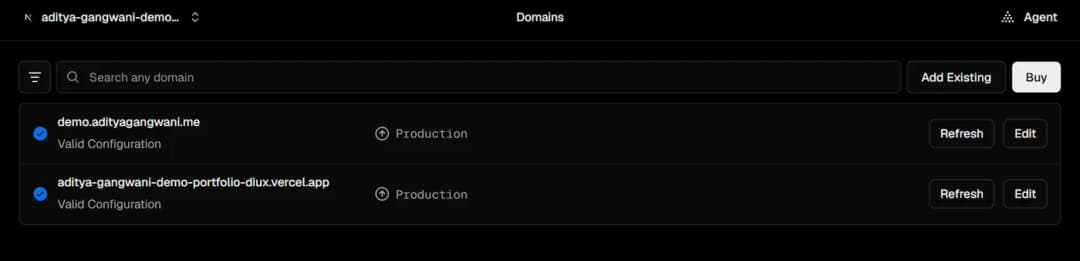
- Valid Configuration: your domain is connected
- Refresh checks the records again
Wait for DNS to update and HTTPS to be issued
DNS answers are cached around the world, so changes take time to spread. This is called propagation. Changes to individual records often show up within minutes to a few hours, though some providers say to allow up to 24 hours. Nameserver changes can take up to 24–48 hours.
Once your records verify, Vercel issues an SSL certificate automatically. That is what makes the padlock and
https://work. This often takes a few minutes but can take longer. While you wait, avoid repeatedly editing the records: each new change needs time to spread again.Test every version of the address
Open each of these in a browser and confirm they all reach your portfolio over HTTPS:
http://example.comandhttps://example.comhttp://www.example.comandhttps://www.example.com
Also try a private browsing window and your phone on mobile data instead of Wi-Fi. Your home network may still remember an old answer for a while, so a second network gives you a fairer test. You can check what the wider internet sees with the Google Admin Toolbox Dig tool (opens in a new tab).
Choose your main address and redirects
Decide which address is the “real” one, so search engines and visitors always land on the same version. In Settings → Domains, click Edit on the domain you want to redirect and pick the main address in the Redirect to dropdown. Then use that main address on your resume, LinkedIn, and anywhere else you share your portfolio. Vercel: Redirecting domains (opens in a new tab)
Connect on GitHub Pages, step by step
If you host on GitHub Pages
Follow this section if you deployed with GitHub Pages in step 7. The order matters: add the domain in GitHub first, then create the DNS records. Labels below were checked against GitHub’s documentation at the time of writing and may differ slightly. GitHub: About custom domains and GitHub Pages (opens in a new tab)
Add the custom domain in GitHub first
Open the repository that publishes your site and go to Settings. In the sidebar section Code, planning, and automation, choose Pages. Under Custom domain, type the address you want as your main one, without
https://, and click Save. GitHub: Managing a custom domain (opens in a new tab)GitHub recommends using a
wwwaddress, such aswww.example.com, as your main address. If you set up both the root domain andwwwin DNS, GitHub redirects one to the other for you.Why first? If your DNS points at GitHub before the domain is added to your repository, someone else could add your domain to their own GitHub Pages site and serve their content on it. This is called a domain takeover, and adding the domain in GitHub first prevents it.
What happens next depends on how your site publishes. If you deploy from a branch, GitHub commits a file named
CNAMEto the root of your publishing source; keep that file, and pull the change before you push again. If you publish with a GitHub Actions workflow, noCNAMEfile is needed, and an existing one is ignored. Either way, add or change the domain in Settings → Pages rather than by editing theCNAMEfile. When you publish from a branch, deleting or overwriting that file can drop the domain. GitHub: Troubleshooting custom domains (opens in a new tab)Create the DNS records where your DNS is managed
In a second tab, open the DNS page for your domain (the DNS provider notes in this step show where it lives at common providers). Use the Host or Name table for the Host field.
- For
www: add a CNAME record with Hostwwwand the value<username>.github.io, using your GitHub username (or organisation name), without the repository name. - For the root domain: add A records with Host
@, one for each IP address listed on GitHub’s custom-domain docs page. If your provider supports an ALIAS or ANAME record, you can use one pointing to<username>.github.ioinstead. - Optional, for IPv6: you can also add AAAA records (IPv6 address records) for the root domain. If you do, keep the A records as well.
GitHub Pages DNS values at the time of writing (copy the current ones from GitHub’s page) Record for Type Host / Name Value wwwCNAME www<username>.github.ioRoot domain A (add all four) @185.199.108.153185.199.109.153185.199.110.153185.199.111.153Root domain, optional IPv6 AAAA (add all four) @2606:50c0:8000::1532606:50c0:8001::1532606:50c0:8002::1532606:50c0:8003::153Copy the IP addresses from GitHub’s page, not from this one. They can change, and GitHub’s documentation is the source of truth. GitHub: current A and AAAA values (opens in a new tab)
If your provider created a default record for
@orwww(often a parking page), edit or remove only that specific record, after your screenshot. Leave MX and TXT records alone. Then save.- For
Do not add a wildcard record
A wildcard record such as
*.example.compoints every possible subdomain at once. GitHub warns against using them with GitHub Pages because they put your domain at risk of takeover. Create only the records listed above.
Verify your domain with GitHub
Verifying proves to GitHub that the domain is yours, so other GitHub accounts cannot use it for their Pages sites. It also fixes the “domain already taken” error. GitHub: Verifying your custom domain (opens in a new tab)
- Open your personal account settings on GitHub (not the repository’s settings) and choose Pages.
- Click Add a domain, enter your root domain, and continue. GitHub shows a TXT record to add.
- At your DNS provider, add a TXT record. Its name starts with
_github-pages-challenge-USERNAME, whereUSERNAMEis your GitHub username; following the Host or Name table, type only that part, not your domain. Paste the value exactly as GitHub shows it. - Wait for the record to appear (a DNS lookup tool can confirm it), then click Verify in GitHub.
- Keep the TXT record in place after verification. Do not tidy it away later.
Turn on HTTPS and test
Back in the repository’s Settings → Pages, tick Enforce HTTPS once it becomes available. That makes every visitor use the secure https:// version. GitHub: Securing your site with HTTPS (opens in a new tab)
- Be patient. GitHub says DNS changes can take up to 24 hours to spread. After your records are right, the Enforce HTTPS option can appear anywhere from a few minutes to about a day later, so there is no fixed time to expect. Avoid repeatedly editing the records while you wait.
- Watch for mixed content. If your pages load images, fonts, or scripts from
http://addresses, browsers may show a warning or block them. Ask your AI tool to change those links tohttps://.
Then open each of these and confirm they all reach your portfolio over HTTPS:
http://example.comandhttps://example.comhttp://www.example.comandhttps://www.example.com
Try a private window and your phone on mobile data too. If your site was a project site and you set a base path for its /repository-name address, check that pages, styles, and images still load on the new domain; if they do not, ask your AI tool to review the base path for a custom domain.
DNS steps for your domain provider
DNS by provider
Find the DNS settings at Name.com, Namecheap, Hostinger, or another provider, and enter the records your host gives you in the right fields without breaking email or other services.
Keep the values your host gives you earlier in step 9 open in another tab so you can copy them exactly. On Vercel, that is the domain card for your project (Vercel steps). On GitHub Pages, it is the list of values on GitHub’s custom-domain docs page (GitHub Pages steps). GitHub Docs: Managing a custom domain (opens in a new tab)
Note
Edit DNS where your nameservers point
Make your changes at the company that hosts your active DNS zone, which is whichever company your nameservers point to. That may not be where you bought the domain. If you registered at Namecheap but your nameservers point to Cloudflare, records you add at Namecheap are ignored. The step 9 checklist explains how to check your nameservers.
The navigation paths below come from each provider’s own help articles at the time of writing. Providers redesign their dashboards from time to time, so if a label on your screen differs, follow the linked help article. Apart from one Namecheap example, there are no screenshots here on purpose: a screenshot of an old layout is more confusing than a short written path.
Matching your host’s fields to your provider
Every record your host asks for comes down to three things: a Type, a Name (the part of the domain it applies to), and a Value (where it points). Vercel’s domain card uses exactly those words. Providers use different words for the same three boxes.
| Provider | Type field | Name field | Value field | Root domain goes in as |
|---|---|---|---|---|
| Your host (what you copy) | Type | Name | Value | @ |
| Name.com | Type | Host | Answer | Leave Host blank |
| Namecheap | Type | Host | Value | @ |
| Hostinger | Type | Name | Points to | @ |
| Cloudflare | Type | Name | Content (the form may say IPv4 address or Target) | @ |
| GoDaddy | Type | Name | Value | @ |
For www, every provider above takes just www in the name field. If your screen uses different words, match the boxes by role: record type, then the name it applies to, then where it points.
With GitHub Pages, for example, www gets a CNAME record whose value is <username>.github.io (your GitHub username, without the repository name). The root domain gets A records, one for each IP address GitHub lists, all on the root name. Copy those addresses from GitHub’s docs page rather than from anywhere else, and add the domain in Settings → Pages before you change DNS, as step 9’s GitHub Pages section explains. The steps below say “your host’s value”; where GitHub lists several addresses, add one record for each.
Name.com
These steps only take effect if your domain uses Name.com’s nameservers, which is the default for domains registered there. Name.com: Using default nameservers (opens in a new tab)
Open your DNS records
Log in, click MY DOMAINS at the top right, click your domain, then choose Manage DNS Records. Existing records are listed on this page, and you can edit or delete them from the same list. Take a screenshot of the list before you change anything.
Remove URL forwarding on the root domain, if there is any
URL forwarding creates its own A records, which clash with the ones your host needs. Check Domain Actions → URL Forwarding; if your root domain forwards somewhere, remove that forward before adding your host’s records. Not every domain has forwarding set up, so check rather than assume. Name.com: URL forwarding (opens in a new tab)
Add the A record for the root domain
Set Type to
A, leave Host blank (Name.com does not use@), paste your host’s value into Answer, keep the default TTL, and click Add Record. If an older A record with a blank Host points somewhere else, edit or delete that one so only your host’s A records remain on the root domain. Name.com: Adding an A record (opens in a new tab)Add the CNAME record for www
Set Type to
CNAME, Host towww, and paste your host’s target into Answer, then click Add Record. Never leave Host blank on a CNAME: Name.com warns that it can overwrite other records, including the MX records your email depends on. Name.com: Adding a CNAME record (opens in a new tab)Return to your host and check
On Vercel, click Refresh on the domain card in Settings → Domains. On GitHub Pages, reopen Settings → Pages and check the status shown under Custom domain, or look the name up in a DNS lookup tool. Name.com’s articles say a change should take effect within 24 hours.
Namecheap
Namecheap only lets you edit host records when the domain uses one of its own DNS services, such as Namecheap BasicDNS. Check under Domain List → Manage → Nameservers. If it says Custom DNS, edit your records at the provider those nameservers belong to instead. Namecheap: Why can’t I modify host records? (opens in a new tab)
Open Advanced DNS
Sign in, open Domain List, click Manage next to your domain, then open the Advanced DNS tab. Your records are in the Host Records section, where existing records are listed. To change one, edit the existing row (change its Host or Value in place) and save it with the green check mark. Take a screenshot of the list before you change anything. Namecheap: Setting up host records (opens in a new tab)
Namecheap: Advanced DNS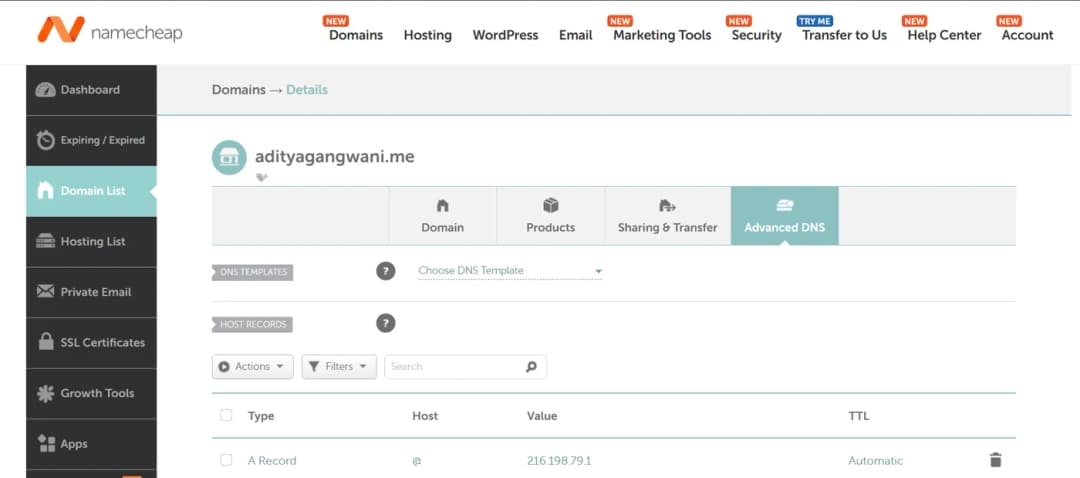
- Open the Advanced DNS tab for your domain
- Records go under Host Records
- Type, Host, and Value: paste what your host showed you
Add the A record for the root domain
Click Add New Record, choose A Record, set Host to
@, paste your host’s value into Value, leave TTL on Automatic, and click the green check mark to save it. If an A record on@that points elsewhere is already there, edit that row instead of adding a second one. Namecheap: Setting up an A record (opens in a new tab)Add the CNAME record for www
Click Add New Record again, choose CNAME Record, set Host to
www(Namecheap adds your domain automatically), paste your host’s target into Value, and save with the green check mark. If you see a Save All Changes button, click it too. If the parking CNAME onwwwis still there, you can edit that row with your host’s target instead of adding a second record. Namecheap: Creating a CNAME record (opens in a new tab)Remove the parking records
New Namecheap domains usually come with two default records that point to a parking page: a URL Redirect Record on
@, and a CNAME onwwwpointing toparkingpage.namecheap.com. Namecheap’s own article puts this step after you add your records: once yours are in place, remove whichever of these is still listed. Remove only the parking records for@andwww, plus any other redirect, A, or CNAME record on those two names that conflicts with your host’s values. Leave email records alone. Namecheap: Connecting a domain to hosting (opens in a new tab)Return to your host and check
Namecheap says new records usually take about 30 minutes to work, while nameserver changes can take up to 24–48 hours. After that, check at your host: on Vercel, click Refresh on the domain card in Settings → Domains; on GitHub Pages, reopen Settings → Pages and check the status shown under Custom domain, or look the name up in a DNS lookup tool.
Hostinger
Changes in Hostinger’s DNS editor only take effect if your domain uses Hostinger’s nameservers. If it points somewhere else, manage DNS at that provider. Hostinger: Pointing a domain to Hostinger (opens in a new tab)
Watch out
Hostinger CDN and the reset button
If Hostinger’s CDN (a speed feature that serves your site through Hostinger’s own network) is turned on for the domain, Hostinger says to turn it off completely before you add an A record for the root domain. Leaving it on can also stop changes to the www CNAME from working. Also avoid the Reset DNS Records button unless you mean it: it restores Hostinger’s defaults, which undoes the records you just added for your host.
Open the DNS records for your domain
In hPanel, Hostinger’s dashboard, choose Domains in the left sidebar, select your domain, and open DNS / Nameservers, which has a DNS records tab (Hostinger: Managing DNS records (opens in a new tab)). If you also have a Hostinger hosting plan, you may reach the same records through Websites → your site → Advanced → DNS Zone Editor (Hostinger: Using the DNS Zone Editor (opens in a new tab)). Hostinger’s own articles word these paths slightly differently.
Deal with the default records
A default Hostinger zone includes an A record for
@, plus MX and TXT records for email. Take a screenshot of the zone first. Then edit or delete the@A record and any AAAA records on@that point elsewhere. Keep the MX and TXT records.Add the A record for the root domain
With the CDN off, set Type to
A, Name to@, paste your host’s value into Points to, keep the default TTL, and click Add Record. Hostinger: Managing A records (opens in a new tab)Add or update the CNAME record for www
Set Type to
CNAME, Name towww(the subdomain only), and paste your host’s target into the target or Points to field, then click Add Record. If any A, AAAA, or CNAME record already exists for that name, edit or delete it so only your host’s record remains. Hostinger: Managing CNAME records (opens in a new tab)Return to your host and check
Hostinger asks you to allow up to 24 hours for changes to spread. To check, click Refresh on the domain card in Vercel’s Settings → Domains. On GitHub Pages, reopen Settings → Pages and check the status shown under Custom domain, or look the name up in a DNS lookup tool.
Other registrars and DNS providers
Cloudflare
Many people keep their domain at one registrar and use Cloudflare for DNS. In the Cloudflare dashboard, select your domain, go to DNS → Records, click Add record, choose the type, fill in the fields (use @ for the root), and save. Cloudflare: Create DNS records (opens in a new tab)
Cloudflare also has a proxy status on each record: Proxied (orange cloud) sends traffic through Cloudflare first, while DNS only (grey cloud) points visitors straight at your host. Cloudflare: Proxy status (opens in a new tab)
- On Vercel: Vercel recommends connecting directly, so set the records you add for Vercel to DNS only (Vercel: Using a proxy in front of Vercel (opens in a new tab)). If you choose to proxy anyway, set Cloudflare’s SSL mode to Full (strict); the Flexible mode can cause redirect loops (Vercel: Too many redirects with Cloudflare (opens in a new tab)).
- On GitHub Pages or another host: follow your host’s guidance on proxying. Setting the records to DNS only is the simplest choice while you are setting up.
GoDaddy
Open your Domain Portfolio, select the domain to reach its settings, and open DNS (GoDaddy: Manage DNS records (opens in a new tab)). If there is already an A record on @ (it may be labelled “Parked”) or a CNAME on www, edit it with your host’s values instead of adding a second one; otherwise click Add New Record. Fill in Type, Name (@ for the root), Value, and TTL, then save. GoDaddy has a help article for each record type: how to add an A record (opens in a new tab) and how to add a CNAME record (opens in a new tab). If the domain has extra protection turned on, GoDaddy may ask for a verification code before it saves the change. This only works while the domain uses GoDaddy’s nameservers. GoDaddy says most changes take effect within an hour but can take up to 48 hours.
Any other provider
The same workflow applies almost everywhere, whatever the buttons are called:
- Look up your nameservers to confirm which company hosts your DNS, and log in there.
- Find the page called something like DNS, DNS records, Zone editor, or Manage DNS for your domain.
- Screenshot or export the existing records before you touch anything.
- Edit the records for the root domain and
wwwto match your host’s Type, Name, and Value. Remove only the A, AAAA, CNAME, forwarding, or parking records on those two names that conflict. Keep the MX and TXT records your email depends on. - Save, including any separate confirm step.
- Return to your host and check until the domain verifies: on Vercel, click Refresh on the domain card in Settings → Domains; on GitHub Pages, reopen Settings → Pages and check the status shown under Custom domain, or look the name up in a DNS lookup tool.
To see what the internet currently returns for your domain, enter it in the Google Admin Toolbox Dig tool (opens in a new tab) and choose A or CNAME. When the answer matches what your host asked for, verification usually follows. If your provider’s help center does not explain where its DNS settings are, search it for “add A record” or “add CNAME record”.
Background: what DNS records are
Your host (Vercel or GitHub Pages) checks the DNS records at your domain company to confirm the domain points at it. Those records take time to spread, which is why this step ends with a wait. Official guides: Vercel: Set up a custom domain (opens in a new tab) and GitHub Pages: Managing a custom domain (opens in a new tab).
If you decided in step 8 to stay on the free vercel.app or github.io address, you can skip this step, including the DNS provider notes, entirely.
DNS in plain terms
DNS (the Domain Name System) is the internet’s directory. Each entry in it is a DNS record: a short line that says “for this name, here is the answer”. You only need to recognise five kinds.
- A record
Points a name to an IP address (a number that identifies a server). Both Vercel and GitHub Pages use A records for a root domain, such as
example.com.- CNAME record
Points a name to another name instead of a number. Both hosts use a CNAME for subdomains such as
www.example.com. The other name (avercel-dnsname on Vercel, or yourgithub.ioaddress on GitHub Pages) then decides where traffic goes, so your host can change its servers without you editing anything.- Nameservers
Decide which company answers DNS questions for your whole domain. Changing nameservers moves every record at once, including the ones that run your email. This step does not ask you to change them (see the nameserver warning).
- TXT record
Holds a piece of text. Services use TXT records to check that you own a domain, and email services use them to prove your messages are genuine. Vercel only asks for one in specific cases; GitHub Pages uses one when you verify your domain. Both are explained below.
- TTL
Short for “time to live”: how long, usually in seconds, other computers may remember an answer before asking again. It is one reason changes take time to show up everywhere. For a new domain, the provider’s default is fine. If the domain already serves a live site or email, consider lowering the TTL on the records you will change a while before you start, so a mistake can be undone faster. Vercel: Troubleshooting domains (opens in a new tab)
If it breaks
A domain problem is often a typo, or a record added at a company that does not manage your DNS. Before you change anything, give the last change time to spread. The Help desk DNS section covers more symptoms.
If the domain will not verify
Give a fresh change some time first, then work through this table. On Vercel, Invalid Configuration on the domain card usually means one of these: Vercel cannot see the DNS records it expects yet, it needs a TXT record to confirm you own the domain, or it could not issue the HTTPS certificate. Rows marked GitHub Pages apply only to that host. Official guides: Vercel: Troubleshooting domains (opens in a new tab) and GitHub: Troubleshooting custom domains (opens in a new tab).
| Symptom | Likely cause | Safe next step |
|---|---|---|
| Still Invalid Configuration after a few hours | A typo in the value, the wrong record type (for example a CNAME where Vercel asked for an A record), or the records were added at a company that does not manage your DNS. | Compare each record character by character with Vercel’s domain card. Check your nameservers again to confirm you edited DNS in the right place. |
The record exists, but as | You typed the full domain in the Host box and the provider added the domain again. | Edit the record so the Host is just |
| Records look right but the old page or a parking page still appears | Conflicting records on the same name: an old A or CNAME record, a URL redirect or forwarding rule, or a registrar parking record. | After taking a screenshot, remove or edit only the conflicting records for |
| Works for some people but not others | An AAAA record (an IPv6 address record) on the same name still points to your old host. Vercel’s docs say it does not support IPv6 yet (Vercel: IPv6 support (opens in a new tab)), so on Vercel any AAAA record on that name conflicts. | Remove AAAA records on the root domain and |
| Vercel says the domain is already in use | The domain was added to a different Vercel project, or to another Vercel account or team. | If it is your own project, remove the domain there first. Otherwise, copy the TXT record exactly as Vercel shows it (its Name is usually |
| DNS is valid but HTTPS never works | A CAA record (which lists the companies allowed to issue certificates for your domain) does not include the one your host uses. | Look up type CAA for your domain in a DNS lookup tool. If nothing comes back, CAA is unlikely to be the cause. If CAA records exist, add one that allows |
GitHub Pages: | The | Edit the CNAME so its value is only |
| GitHub Pages: the domain is already taken or in use | The domain is set on another GitHub Pages site, either one of your other repositories or another account. | If it is your own repository, remove the domain in that repository’s Settings → Pages. Otherwise, verify the domain in your account settings, then add it again. |
| GitHub Pages: the Enforce HTTPS checkbox is unavailable | The certificate is not ready yet, your DNS records do not point to GitHub yet, or a CAA record blocks the certificate. | Wait (it can take up to about a day), check your records with a DNS lookup tool against GitHub’s values, and make sure any CAA record allows |
| GitHub Pages: the custom domain disappears after a deploy | You publish from a branch, and the | Set the domain again in Settings → Pages, then pull so your copy includes the |
Still stuck? The Help desk covers more symptoms, including a site that works on one address but not the other.
Step 10 of 10Launch4 min
Step 10: Check and launch
In this step: Check your content, design, accessibility, links, and domain one last time, then share a portfolio you can stand behind.
Aditya
Before you share your link anywhere, go through my checklist once on the live site. If something fails, fix it, push, and check again.
Do this
- Open your live address, not the preview on your computer, on a desktop browser and on your phone.
- Tick each item in the checklist below as you confirm it.
- If an item fails, fix it with your AI tool (the prompts in step 4 help), push, and check the live site again.
- For an extra check, run a Lighthouse report from Chrome’s developer tools. It scores performance, accessibility, best practices, and SEO.
- Add the link to your resume, your profiles, and your applications.

Mobile scores for this site, measured with Lighthouse
- Performance: how fast pages load on a phone
- Accessibility: whether everyone can read and use the site
- SEO: whether search engines can understand the pages
0 of 18 checked
You’re done when every item is ticked on the live site and the link is on your resume and profiles.
Show me how, step by step
Before you add the link to your resume, your profiles, or your applications, go through this list once on the live site. Tick each item as you confirm it. Nothing is saved, so if you reload the page the list starts fresh, which is handy when you run through it again after a big update.
If an item fails, fix it with your AI coding tool (the prompts in step 4 help), push the change, and check again on the deployed site. The Help desk covers common problems.
What you have built, and how to keep it alive
What you have accomplished
If you followed this guide from the start, you now have:
- A portfolio built from your real experience and projects, with an AI coding tool doing the coding.
- Your code stored on GitHub, with a history of every change you have made.
- A live site on Vercel or GitHub Pages that updates when you push a change.
- Optionally, your own custom domain with HTTPS.
- A repeatable workflow: describe a change, review it, push it, and check the live site.
That last point matters most. The portfolio is never really finished, and you now know how to keep improving it without starting over.
Keep it alive
- Update it after each project. Add new work while the details, decisions, and results are still fresh.
- Review your links every few months. Once a quarter, click through your contact, resume, and project links to catch anything that has moved or expired.
- Renew your domain if you bought one. Turn on auto-renew at your registrar, or set a reminder before the renewal date. An expired domain takes your portfolio offline.
If it breaks
Find the symptom in the Help desk, then change one thing at a time:
See a finished example
My own portfolio at adityagangwani.me is an example of a finished portfolio built with this workflow. It is a product manager’s portfolio, so its sections reflect that field; yours should reflect your own. You do not need to visit it to follow the guide, but if you would like to see where the steps can lead, have a look around.
Spotted something outdated, or want to share your finished site? Tell me in the feedback section at the end of this guide.
For any step
Stuck? Help desk
In this section: Match a symptom to its likely cause and a safe next step, from failed builds and 404 pages to DNS conflicts, and use a debugging prompt that fixes the smallest thing first.
Aditya
When something breaks, start here. My rule is to find what you see, try the least risky step first, and change one thing at a time.
Something will go wrong at some point. That is normal, and it is rarely a disaster if your work is committed to GitHub. A common way to make it worse is asking an AI tool to “fix it” over and over, until five unrelated things have changed and nobody knows which one mattered.
The method: four habits that keep a fix small
Diagnose before you change anything
- Read the evidence. For a failed deployment, open the build log in Vercel (see the end of step 7 for Vercel) or the failed run in your repository’s Actions tab on GitHub (see step 7 for GitHub Pages). For a page that looks or behaves wrong, open your browser’s developer tools and check the console, the panel where the browser lists errors.
- Check the real configuration. Look at what is actually set in your host (Vercel or GitHub Pages) and at your DNS provider, not what you remember setting.
- Change one thing at a time. Then test again. If the change did not help, undo it before trying the next idea.
- Keep a commit you can return to. Commit every version that works, so there is always a safe point to roll back to.
The first table covers building the site and deploying it on Vercel. Problems specific to GitHub Pages and to DNS have their own tables further down.
Symptom table: building, Vercel, and the live site
Symptoms, causes, and next steps
Find the row that matches what you see. Each row lists the likely causes, and the next step is the least risky thing to try.
| Symptom | Likely cause | Safe next step |
|---|---|---|
| The AI-built site looks generic | The prompt was vague, the tool had no real content to work with, or the feedback was “make it better”. | Give it your real content and two or three sites you like, with what you like about each. Ask for one specific change at a time, such as “increase the spacing between project cards”. The refinement prompts in step 4 help. |
| The site broke after an AI edit | The edit changed more than you asked, removed something another part of the site depended on, or introduced an error. | Stop asking for more fixes. Roll back to your last working commit (see Roll back to a working version), then re-apply the change with the debugging prompt and a narrower request. |
| The layout is poor on mobile | Fixed widths, large images or tables wider than the screen, or text sized only for desktop. Often it was simply never tested at phone width. | Open the site on your phone, or use your browser’s device toolbar, and note exactly which section breaks and how. Give that description to your AI tool with the mobile prompt from step 4. |
| Vercel cannot see or access your GitHub repository |
| On GitHub, go to Settings → Applications → Installed GitHub Apps → Configure (Vercel) and add the repository under Repository access (see GitHub’s guide (opens in a new tab)). For a private organization repo, pick one: move the repo to your personal account, make it public (check it holds nothing private first), or upgrade to Vercel Pro. See Vercel’s Git docs (opens in a new tab). |
| Pushing to GitHub does not start a new deployment |
| Run |
| The build or deployment fails | A code error, a missing package, a file name whose upper/lower case differs from the import (fine on your computer, broken on your host’s build machines), or wrong build settings or Root Directory. | On Vercel, open Deployments → the failed deployment → Building logs and copy the first error. Run the build locally, then use the debugging prompt below. Official guide: Troubleshooting a build (opens in a new tab). On GitHub Pages, see the Pages table. |
| The build is blocked by a security notice about your framework version | Your host refuses to deploy a framework version with a known security problem, to protect your site and its visitors. | Ask your AI tool to upgrade the framework to a patched version, run the build locally, and push. Do not look for a way to bypass the check. |
| The deployment succeeds but the site is blank, or Vercel detected the wrong framework | The Framework Preset was detected as Other, or the Output Directory points at the wrong folder (for example, Vite builds to | In the project’s build settings, set the correct Framework Preset and Output Directory, then redeploy. Ask your AI tool which values your project needs. Official guide: Configuring a build (opens in a new tab). |
| An environment variable is missing or empty | It exists in your local | Add it in your Vercel project’s environment variable settings with exactly the same name, then redeploy (for example by pushing a new commit). Never fix this by pasting the secret into your code. Official guide: Environment variables (opens in a new tab). |
| A page shows “404 Not Found” |
| Compare the address in the browser with the actual file or route name, letter by letter. If every page 404s, check the build settings in Vercel against your readiness prompt’s recommendation. For the refresh problem, ask your AI tool to configure rewrites or the output directory for Vercel. Official guide: How to debug 404 errors (opens in a new tab). On GitHub Pages, see the Pages table. |
| Visitors see a Vercel login page instead of your site | You shared a preview or per-deployment URL, and Deployment Protection asks visitors to sign in to Vercel. | Share the production address from your project’s dashboard instead. Change protection settings only deliberately, knowing what they expose. Official guide: Deployment Protection (opens in a new tab). |
| Domain verification fails in Vercel |
| Compare each record with Vercel’s domain card, then work through the custom domain troubleshooting table in step 9. If the values are right, use the Refresh option on the domain card. Still stuck after several hours: remove the domain from the project and add it again, then copy the TXT value it shows, which may be new. Official guide: Troubleshooting domains (opens in a new tab). |
| Your domain is on Cloudflare and stays “Invalid Configuration” in Vercel | The record is proxied (orange cloud), which hides the value Vercel is looking for behind Cloudflare’s own addresses. | Switch only the records you created for Vercel to DNS only (grey cloud), then re-check the domain card. See the Cloudflare notes in step 9. |
| “ERR_TOO_MANY_REDIRECTS” with Cloudflare in front of Vercel | Cloudflare’s SSL mode is Flexible while the record is proxied. | Set the Vercel records to DNS only, or change Cloudflare’s SSL mode to Full (strict). Official guide: Resolve ERR_TOO_MANY_REDIRECTS with Cloudflare (opens in a new tab). |
| Your changes do not appear on the live site |
| Check GitHub for your latest commit on |
Symptom table: GitHub Pages
GitHub Pages problems
These rows cover sites published with GitHub Pages (step 7, GitHub Pages). GitHub’s own 404 troubleshooting guide (opens in a new tab) and custom domain troubleshooting guide (opens in a new tab) go into more detail.
| Symptom | Likely cause | Safe next step |
|---|---|---|
| The published URL shows “404” |
| Wait 10 minutes and reload. Then open Settings → Pages and check the source, branch, and folder (see step 7, GitHub Pages), and confirm the entry file sits at the top of that folder with a lowercase name. For a user site, the repo must be named |
| The page loads but CSS, JavaScript, or images are missing on a project site | A project site lives at | Set a base path for the repository name, for example Next.js’s basePath (opens in a new tab) setting. Ask your AI tool to apply it for your framework and check every asset path (see base paths in step 7, GitHub Pages). |
| A Next.js site has no styling, or its _next folder is missing, when publishing from a branch | Branch publishing runs Jekyll by default, and Jekyll skips folders that start with an underscore, such as Next.js’s | Add an empty file named |
| The home page works, but refreshing an inner page gives 404 | The site is a single-page app that builds pages in the browser. GitHub Pages only serves files that exist and has no rewrite rules to send every address back to your app. | Use a framework setup that exports one HTML file per page (for example Next.js static export), or hash-based routing. Ask your AI tool which fits your project. A custom |
| The Pages option is missing or the site does not appear, and the repo is private | On GitHub Free, Pages works only in public repositories. | Make the repo public after checking it holds nothing private (step 5), move to a paid GitHub plan, or deploy with Vercel, which can deploy private repos on your personal account. See Creating a GitHub Pages site (opens in a new tab). |
| Your changes do not show up | Publishing has not finished, the build or deploy workflow failed, or your browser is caching. | Wait up to 10 minutes. Open the Actions tab and look for a failed run on your latest commit. Then hard refresh (Ctrl+Shift+R on Windows, Cmd+Shift+R on Mac) or open a private window. |
| The build or deploy workflow fails | A build error, Settings → Pages not set to GitHub Actions, missing workflow permissions, or a deployment that ran past the 10-minute time limit. | Open Actions → the failed run → the failed step, and copy the first error into the debugging prompt. Check that the deploy job has |
| The custom domain says it is already taken | Another GitHub account or repository has claimed the domain. | Verify the domain from your profile’s Pages settings with the TXT record GitHub gives you, and keep that record (step 9). See Verifying your custom domain (opens in a new tab). |
| The www address does not reach your GitHub Pages site | The | Edit only that record so it points to |
| The site stopped loading, or visitors get “HTTP 429” | The site may have gone over GitHub Pages’ rate or usage limits, such as its soft bandwidth limit. | Check your email for a message from GitHub and read the GitHub Pages limits (opens in a new tab) (summary in step 7, GitHub Pages). Limits can change. If your site regularly needs more, consider another host. |
Symptom table: DNS, domains, and HTTPS
DNS and domain problems (any host)
These apply whichever host you use. Always use the exact values your host shows (Vercel: the domain card; GitHub Pages: the values in GitHub’s custom-domain docs (opens in a new tab)).
Watch out
Before you change any DNS record
Take a screenshot or export of your current records first. Change or remove only the specific record that conflicts, for the same name (@ or www). Never delete records in bulk, and do not switch nameservers to fix one record: a switch moves every record, and email stops working if its MX and TXT records are not copied across.
| Symptom | Likely cause | Safe next step |
|---|---|---|
| DNS records conflict, or the domain points at an old site or a parking page | Older A, AAAA, or CNAME records on the same name, such as a parking page, URL forwarding, or a previous host. | After taking a backup, edit or remove only the conflicting records for |
| Records you added have no effect at all | Your domain’s nameservers point to a different company from the one where you added the records. | Find which company your nameservers point to and add the records there instead. Do not change the nameservers to make the records work. See the DNS provider notes in step 9. |
| You are not sure whether a DNS change has taken effect yet | DNS answers are cached. Record changes are often quicker; nameserver changes can take 24 to 48 hours. | Look the name up in a public tool such as Google Admin Toolbox Dig (opens in a new tab) or dns.google (opens in a new tab), choosing the record type. If it shows the right value, try a private window or mobile data. Do not change the record again while you wait. |
| HTTPS is not active yet (security warning) | DNS has not verified yet, or the certificate is still being issued. On GitHub Pages, “Enforce HTTPS” can take up to 24 hours to become available. A proxy such as Cloudflare’s orange-cloud mode can also get in the way. | Confirm the domain is verified in your host and give it time. Then see the step 9 table for Vercel, HTTPS on GitHub Pages, and the Cloudflare notes, all in step 9. |
| HTTPS stays stuck while the DNS values look right |
| Look up type CAA and AAAA for your domain in a lookup tool. If nothing comes back for CAA, it is unlikely to be the cause. Otherwise, after a backup, edit only the specific conflicting record (for CAA, add |
| Email stopped working after a DNS change | MX or TXT records were changed, deleted, or not copied across, for example after a nameserver switch. | Restore your email provider’s records from your screenshot or backup, exactly as they were. If you have no backup, ask your email provider for the correct records. |
| The site works on one network but not another | Cached DNS on that network or device, or the network filters some sites. | Test on mobile data and compare with your free host address ( |
| The site works on example.com but not www.example.com (or the reverse) | Only one version was added in your host, the DNS record for the other is missing, or no redirect was set between them. | On Vercel, add both versions in Settings → Domains, create the record Vercel shows for each, and set one to redirect to the other, as in step 9 (Redirecting domains (opens in a new tab)). On GitHub Pages, set up both the root records and the |
Undo a bad change with a revert
Roll back to a working version
If the site worked before a change and does not now, going back is often faster than fixing forward. The safe way is a revert: a new commit that undoes an earlier one, without deleting any history.
- With your AI tool: ask it to show you the recent commits, explain which one introduced the problem, and revert that commit with
git revert. Tell it not to use commands that delete history. - With GitHub Desktop: find the commit in the app’s history and choose the option to revert it (labels may differ by version), then push.
- On the command line: the two commands below undo your most recent commit.
git revert --no-edit HEADCreates a new commit that reverses the most recent one. HEAD means “the latest commit”, and --no-edit keeps the default message instead of opening an editor.
git pushSends the revert to GitHub. Your host (Vercel or GitHub Pages) then publishes the restored version, as it does for any push to the branch it publishes from.
Vercel keeps a list of your past deployments under Deployments, and the Actions tab on GitHub lists each Pages run with its commit, so you can see which commit was the last one that worked before you choose what to revert.
Watch out
Avoid commands that rewrite history
If an AI tool suggests git reset --hard or a force push (git push --force), ask it to explain why first. These can permanently discard work. A revert is almost always the safer choice for a personal site.
The debugging prompt to give your AI tool
Debugging prompt
Use this whenever something is broken and you are about to ask your AI tool for help. Fill in every line you can; the exact error text and what changed recently matter most.
Prompt
Diagnose and fix one problem safely
Make your AI tool explain the cause with evidence and propose the smallest fix before it edits anything.
Replace the [marked] parts with your own details.
Help me fix a problem with my portfolio site. Diagnose before you change anything.

The problem
- My host: [Vercel / GitHub Pages / other]
- What I see: [describe the symptom]
- What I expected: [what should happen instead]
- Steps to reproduce: [what I open or click, on which device and browser]
- Where it happens: [local preview, a preview URL, the free vercel.app or github.io address, or my custom domain]
- Exact error text: [paste the error message, the relevant part of the build log or failed GitHub Actions run, or the browser console message]
- What changed recently: [the last edit, AI prompt, setting, or DNS change before it broke]

How to work
1. Read the relevant files, logs, and configuration first. Do not edit anything yet.
2. Explain the most likely cause in plain language, with the evidence: the file, line, or log message that points to it. If you are not sure, list the other possible causes too.
3. Propose the smallest safe fix. Say what it changes and what else it could affect.
4. Wait for my OK before editing.
5. Preserve existing functionality, content, and design. Do not refactor, rename, upgrade, or "clean up" anything unrelated.
6. After the fix, show me the diff.
7. Verify it: run the build (and tests, if the project has any) and report the actual result. Then tell me exactly what to check in the browser, at desktop and phone width.
8. If you do not have enough information, ask me for it (for example the full build log or the failed GitHub Actions run) instead of guessing.
Still stuck? Ask a question. Include your host, the symptom, and the exact error text.
Feedback
Help improve this guide
Tools change their screens often. If a step no longer matches, or you get stuck, tell me and I’ll fix the guide.
- OutdatedReport something outdatedA screen, button, or step that no longer matches what you see.
- QuestionAsk a questionStuck on a step, or not sure what something means.
- ShowShare your finished portfolioSend the link. I like seeing what people build with this.
These open your email app. Nothing is sent or stored by this page. Please don’t include passwords, API keys, or other secrets in your message.
Prefer a form?Use the contact form